
How to Install Custom Procreate Fonts on Your iPad
How to Install Custom Procreate Fonts on Your iPad Read More »

First thing’s first, you’ll need to install fonts on your device! You are able to import fonts that are TrueType (.ttf) or OpenType (.otf) on your iPad.
To get started, if you purchased your font from me, you’ll need to download your purchase, and if necessary, unzip the folder. Most newer iPads have this capability built right in. If you’re working with older software, you may need to download a file extractor.
It’s pretty easy to install fonts in Procreate itself (as opposed to your iPad as a whole where the fonts would be available in any app that accesses your system’s installed fonts).
Tap Actions > Add > Add Text. Once you’ve typed the text that you would like to use, tap Edit Style > Import Font. Navigate through the Files app on your device to the folder where you saved your custom font. Tap on the font file to import the font, and it will appear in the Fonts list in Procreate.
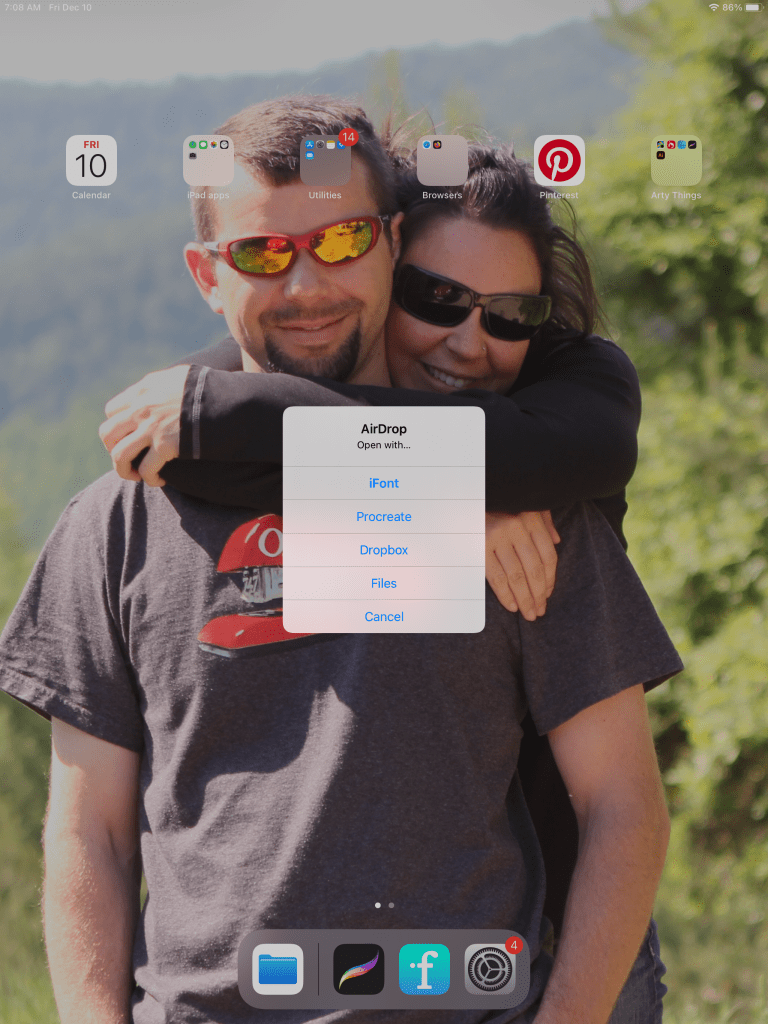
Bonus Tip: If you also have an iMac or MacBook, you can share an .otf or .ttf file with your iPad by Airdropping it. You can then select what you want to open the font with – if you choose Procreate from your list, it automatically installs it for you.
See what that looks like below!
If you choose not to take the easy route outlined above, you can install the fonts using another method! This method below ensures that the fonts are installed directly on your device, rather than available only through Procreate. This method would be handy if you work in Procreate, as well as other apps, like Design Space, Illustrator App, etc.
IMPORTANT: Please be patient and aware of the fact that I, personally, do not make the rules + processes needed for font installation on your iPad or iPhone. I only create the font files, and have literally no control over the operating system, your device’s capabilities, or the rules the developers put in place for a process like this.
I will always recommend that the best experience with my fonts will be on a desktop or laptop machine.
That said, it is absolutely possible to use my fonts on an iPad or iPhone, but you must follow the process below, which includes downloading the files, extracting the files, and a few different steps using third party apps.
Your new font(s) will need to be installed using the iOS configuration profile. While there are ways of doing this without an app, it’s easiest to do this by using a font app that configures/installs your new fonts for you.
Using apps like AnyFont, Font Installer, iFont, and other font apps will allow you to download your font file and package it up so that it can easily be installed on your iPad or iPhone. You can install multiple fonts or choose one font to install!
For the purpose of this set of instructions, I’ve chosen to work with iFont – it’s free to use!
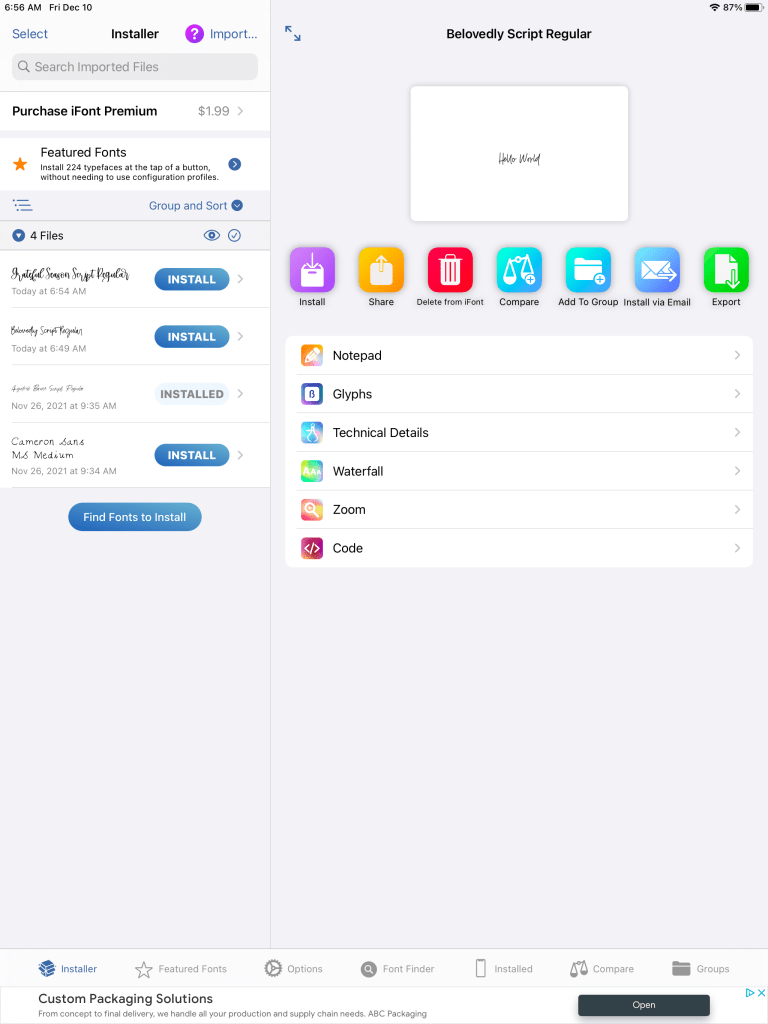
This is what the interface looks like!
With some font apps, like the iFont app, you may be able to download Google fonts directly within the app from the font libraries. However, you can also download your Google fonts or custom third party fonts directly from your browser!
You would only need to follow the general download process as you would for any other downloadable file, unzip if necessary, and make sure you know where you saved the file!
iFont has an option to “Find Fonts to Install” — tap that, and then use “Open Files.” Navigate to where you downloaded the font file! Select the font you wish to install.
I’ve chosen to work with my font Grateful Season for this blog post!
After this, it’s smooth sailing! Next, install the font!
In iFont, you can do this by tapping “Installer” at the bottom left corner. It should have a little red bubble to indicate the notification – the red bubble will disappear when you tap.
When you tap Installer, you’ll see the font(s) you selected to install on the left side of your screen with a blue “Install” button. Tap install!
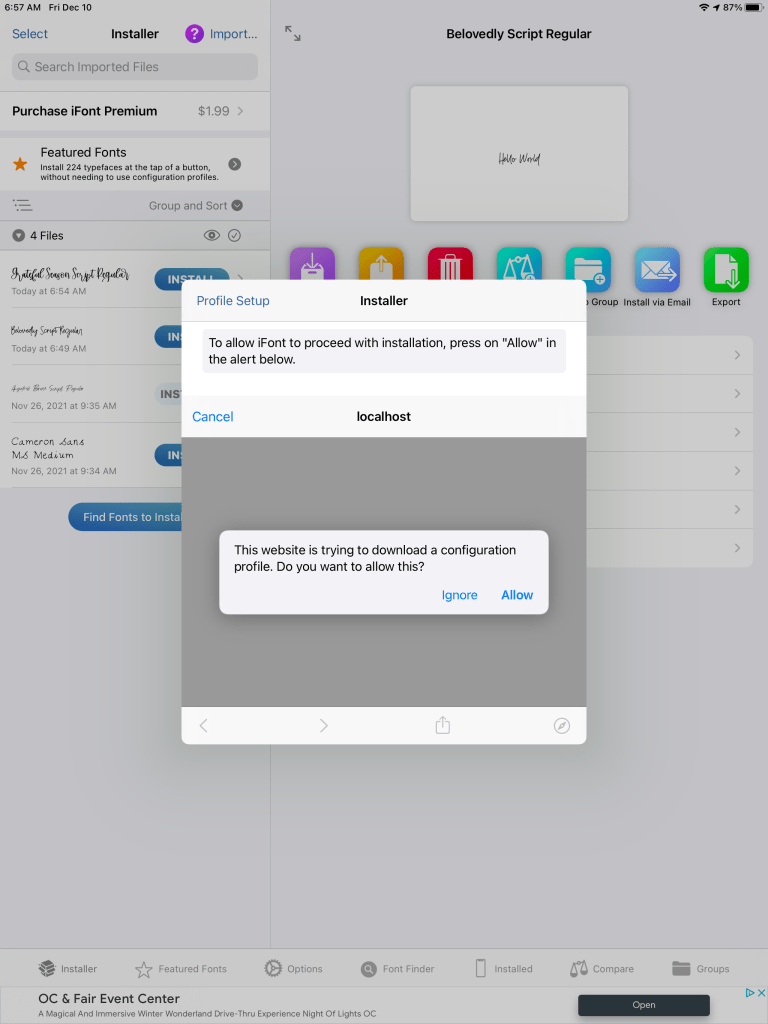
You’ll get a pop-up within the app after this. When prompted to open a configuration profile in your settings app, tap “allow”. Depending on your iPad settings, you may be prompted to enter your passcode.
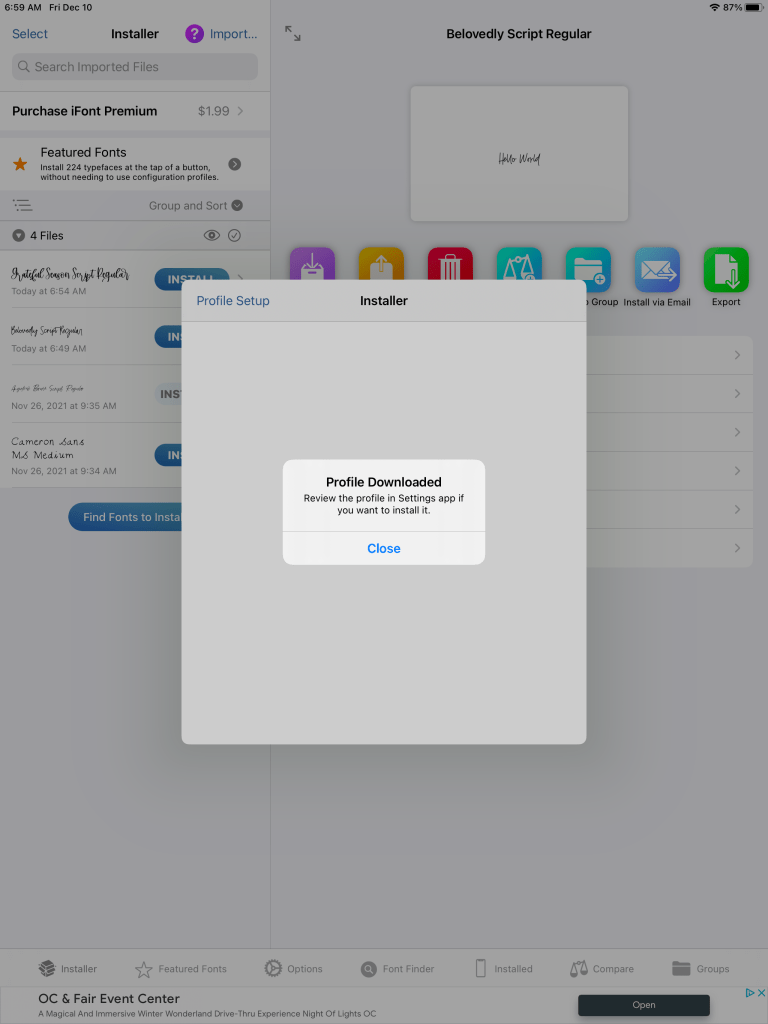
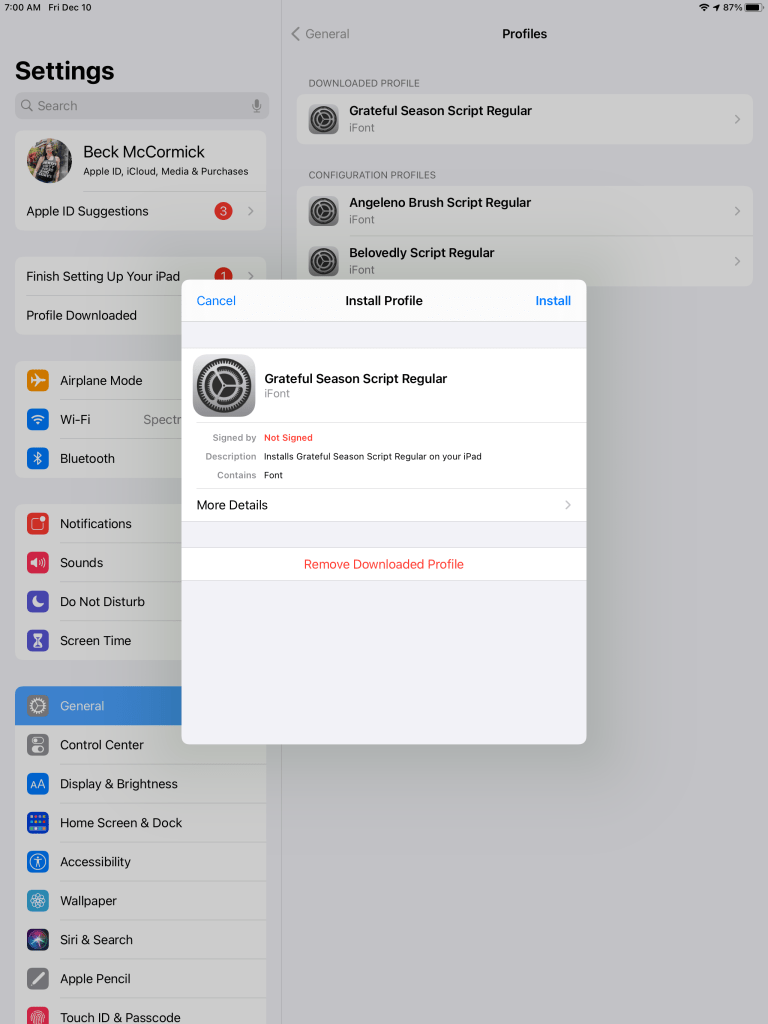
After you do that, you’ll get a notice that says that the profile was downloaded, and it instructs you to review the profile in Settings if you wish to install the font. When you tap “Close” on the notice, you’ll find a set of instructions for what you need to do next. Follow those instructions! (You can tap “Cancel” in the upper right corner of the pop-up to get rid of this before you go to your iPad Settings.)
You will receive a warning that the profile isn’t signed with a key because it was generated on your device. But don’t worry! You can see for yourself by tapping “More Details” and viewing exactly what’s inside: simply the fonts installed by you! A screencap of what that looks like is below!
Continue tapping Install for any other windows that pop up.
Now, tap “Done” when you receive the notification that it was installed.
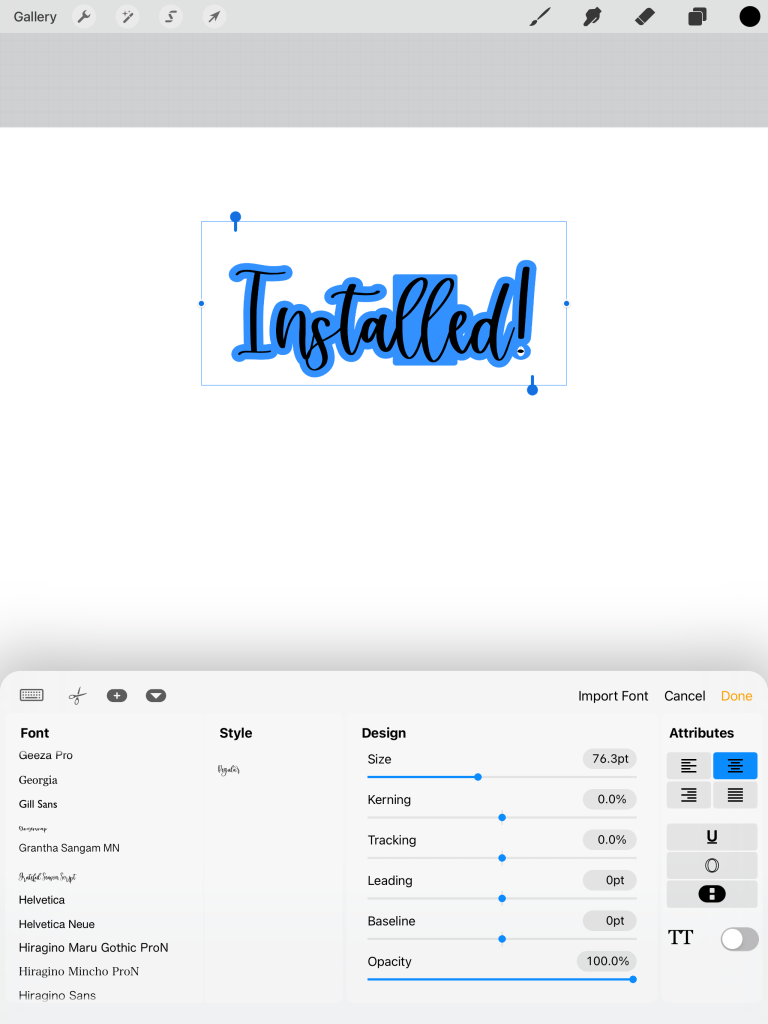
Now that you’ve installed your custom fonts, they will appear beside the default fonts in Procreate in the font list. Simply choose your font in the list and use it to your heart’s content to enhance your illustrations and designs!
Pro Tip: If you’d like to use the alternate characters in the font, you can download the paid app Unicode Character Viewer. The app is .99 cents, and will allow you to look up fonts installed on your device, copy the glyph you’d like to use, and then paste the glyph into Procreate.
If you’ve decided that you’ve had enough of a new font and want to remove it, you can navigate to Settings > General > Profiles. Here, you can select a font profile and tap “Remove Profile” to remove the font from your system.
If you think a video demonstration would be more helpful to you, I have a video of how to install fonts for Procreate here. Additionally, if you’re interested in the process to use special characters in Procreate, you can find that demonstration here.
How to Install Custom Procreate Fonts on Your iPad Read More »
Procreate is a popular app used for a variety of things, on your iPad! You can draw, paint, or do graphic design. When I originally started creating my custom fonts, I used Procreate for lettering and then transferred to my computer to start programming my fonts. I still do this, but one thing has changed since I started – now Procreate allows you to install fonts! This was an upgrade that so many people were excited to have, and many of my clients use my fonts in this app!
Your Procreate app has unlimited access to the fonts that are installed on your device! Any default font or new free font that you have installed to your device will be available in your font list. It’s important to note, however, that just downloading a font to your files app won’t make the font visible in your Procreate fonts. You will need to either install the font on your device so that all of your applications can access it or import the font directly to Procreate.
Using the best fonts for your project can be a tough call. If you’re wanting to add fonts that give your project a handwritten look or that maintain that hand-drawn look, using a handwritten script font on top of your artwork can make you look like a master of hand-lettering!
Rest assured that, no matter the font you choose or style you’re after, adding text to your Procreate designs is now easier than ever!
There aren’t many fonts that I release that don’t include extra features like alternates and ligatures, whether it’s a brush font, calligraphy font, or sans-serif font. I love being able to provide robust font files to my customers and give them a better experience than they will get with free fonts.
However, you’re not always able to use the additional features and stylistic alternates. Even though Procreate uses standard .otf or .ttf font files, Procreate’s app doesn’t support OpenType features — yet. So it’s important to keep in mind that, whenever you use a handwriting font created by me in Procreate, you will likely only be able to use the default uppercase and lowercase letters!
I’m hopeful that Procreate is working on a solution for this, so users can experience the full range of options available super easily!
If you want to import custom fonts that you’ve purchased or that are in your fonts folder into Procreate, check out our tutorial on how to import your new favorite Procreate fonts!
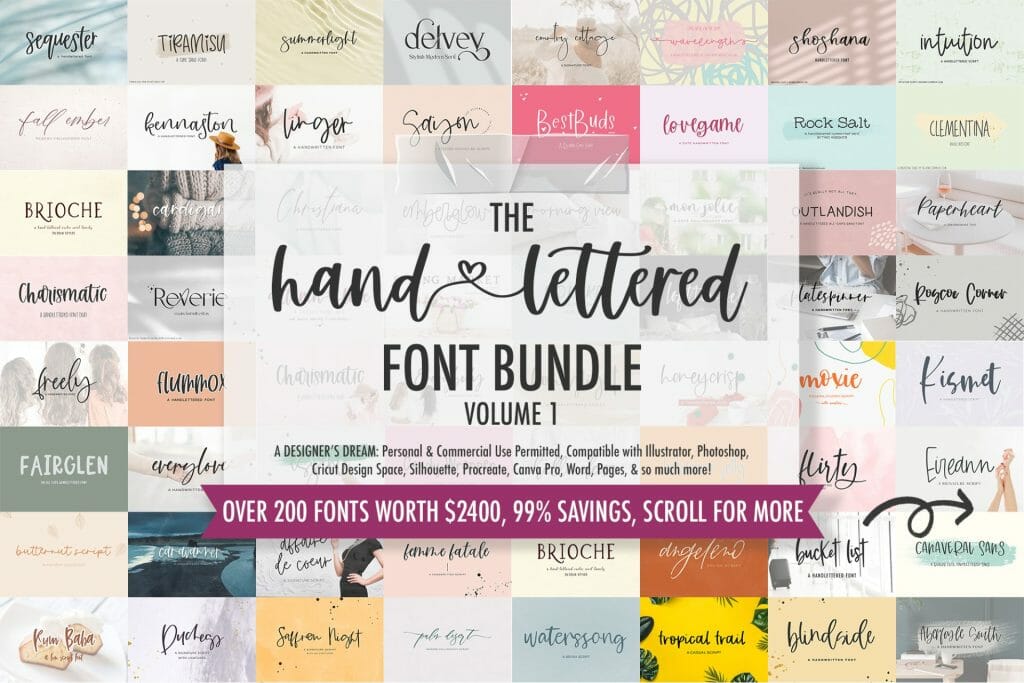
My font bundle includes a variety of fonts that have a hand-crafted look and feel to them! You can purchase the bundle for personal use or license the fonts for commercial projects. Check it out today and find your new favorite fonts!
Fonts for Procreate Read More »
Handwriting fonts always add a personal touch to projects. But finding one that you like can be a challenge. A handwriting font can be anything from a script font to a hand-drawn brush font, but can also feature sans-serif or serif fonts! The style of a handwriting font is created to emulate a different handwriting style each time!
Handwriting fonts are similar to script fonts but have a less “polished” look to them. They tend to be a bit more rustic and organic in their design, giving a more unique and personalized feeling to them.
Handwriting fonts come in many different styles and can be used for almost anything. If you’re looking for a handwritten font to use on any project, I’ve got you covered with my directory of over 200 handwritten fonts. Handwriting fonts aren’t just for projects that involve hand-written text. You can use them on any project that you’d like to add a personal touch to, such as:
You can do many more things with handwriting fonts besides making cards and scrapbooking layouts! Browse the internet to find what you’d like to create, then try out some of the beautiful handwriting fonts in my shop for personal or commercial use. Don’t settle for free handwriting fonts that get the job half done, find your new favorite handwriting font today!
You’re bound to find something that will work on your next DIY project!
Handwriting fonts are very popular in scrapbooking and card making. Because of this, there are many free handwriting fonts available online which you’re able to download for free.
But, that doesn’t always mean that free handwriting fonts are the way to go. Premium handwriting fonts are more often than not created with more attention to detail than even the best free handwriting fonts. This means that, even your favorite free handwriting font, may end up looking more like a font than something that is handwritten, while a premium handwriting font can often emulate the look and feel of handwriting! (Pro tip: I do this by including tons of alternate character options & ligatures in my handwritten signature-style fonts. Ligatures are combinations of letters programmed as a single glyph. You don’t find many free script fonts that offer such a wide range.)
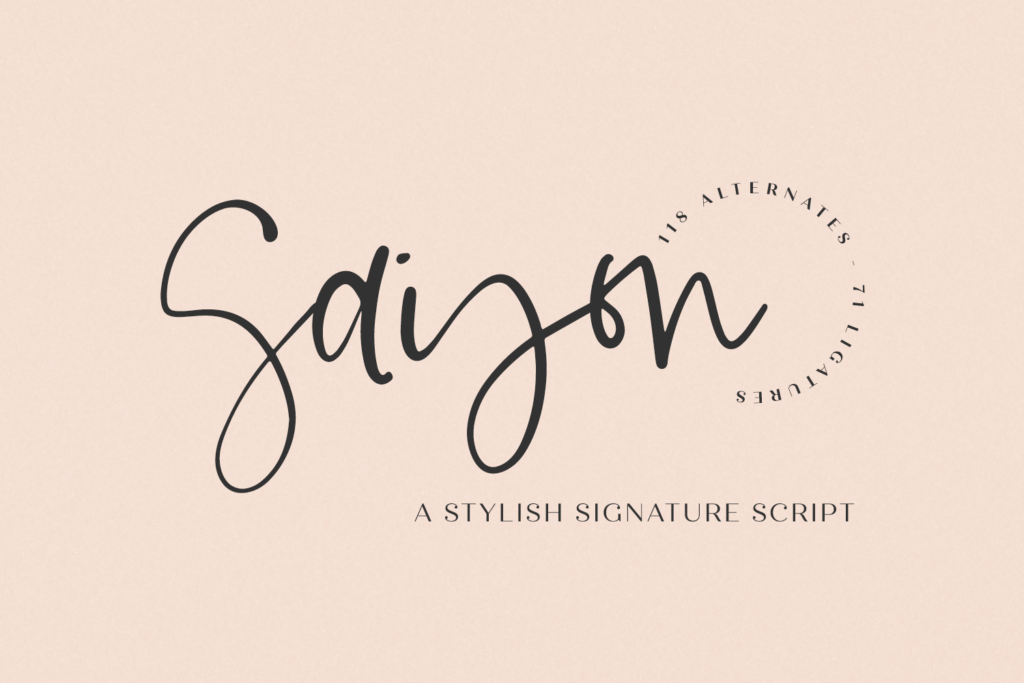
My personal favorite cursive handwriting font is Saison Script, a handwritten signature style font. Saison was inspired by the lettering I used in my own logo — I decided to make this available to my customers, since so many of you have asked the question, “What font did you use?” Now, I can tell you that it’s this one! This stylish script font features a messy, casual look and ligatures to enhance the flow of the handwriting look & feel of your project!
– logos + branding
– website design + website accents – think travel blogs, fashion blogs, & more
– clean print design, like magazines + flyers
– header elements that need handwritten touch
– quote graphics for social media
Need A Font That Looks Like Handwriting? Read More »
For me, the holidays are always the best spent with family.
A couple years ago, we celebrated the fall and winter season by heading out to Austria and Germany around Thanksgiving! I love to travel, so it was amazing to get this opportunity to do so, all while experiencing how another country begins to celebrate the Christmas season.
It was hard at first, since we were all tired AND they speak a completely different language than we do. Speaking English in Germany made me feel a little silly, but the locals were quite forgiving. Knowing the very basics was helpful – thank you, and I’m sorry/excuse me.
Strolling around the Christmas markets was definitely the highlight of everyone’s experience in Germany, though. It was nothing short of pure magic for me, and that’s definitely not just the Gluhwein talking. Tooling through the booths really sparked my inspiration!
Everywhere, you could see different things at each booth, like cookies at one, and a collection of paintings done right in front of you. You could find just about anything there. Also, their food and sweets selection was immaculate. Each candy booth had hundreds of types of candy, and some sweets booths even had chocolate covered strawberries, made fresh. I got to experience raclette for the first time, too!
Thankfully, we went at just the right time of year where there was a bit of chill in the air, but no real ice or snow to speak of. To be fair, I wouldn’t have minded a little snow, but the ice…no thank you.
Anyway, inspiration was everywhere I looked. I love the holiday season, so I’ve put together this collection of winter fonts for you, which will be the perfect addition to winter themed designs and projects.
This bundle is amazing for the winter season, and it has so many script fonts to choose from. Winter fonts might just seem like a ruse, like… how can a font imitate or work well in the winter? That’s the thing: winter fonts bring the feeling of winter (cozy blankets, hot chocolate, opening presents) right into whatever projects or designs you’re making.
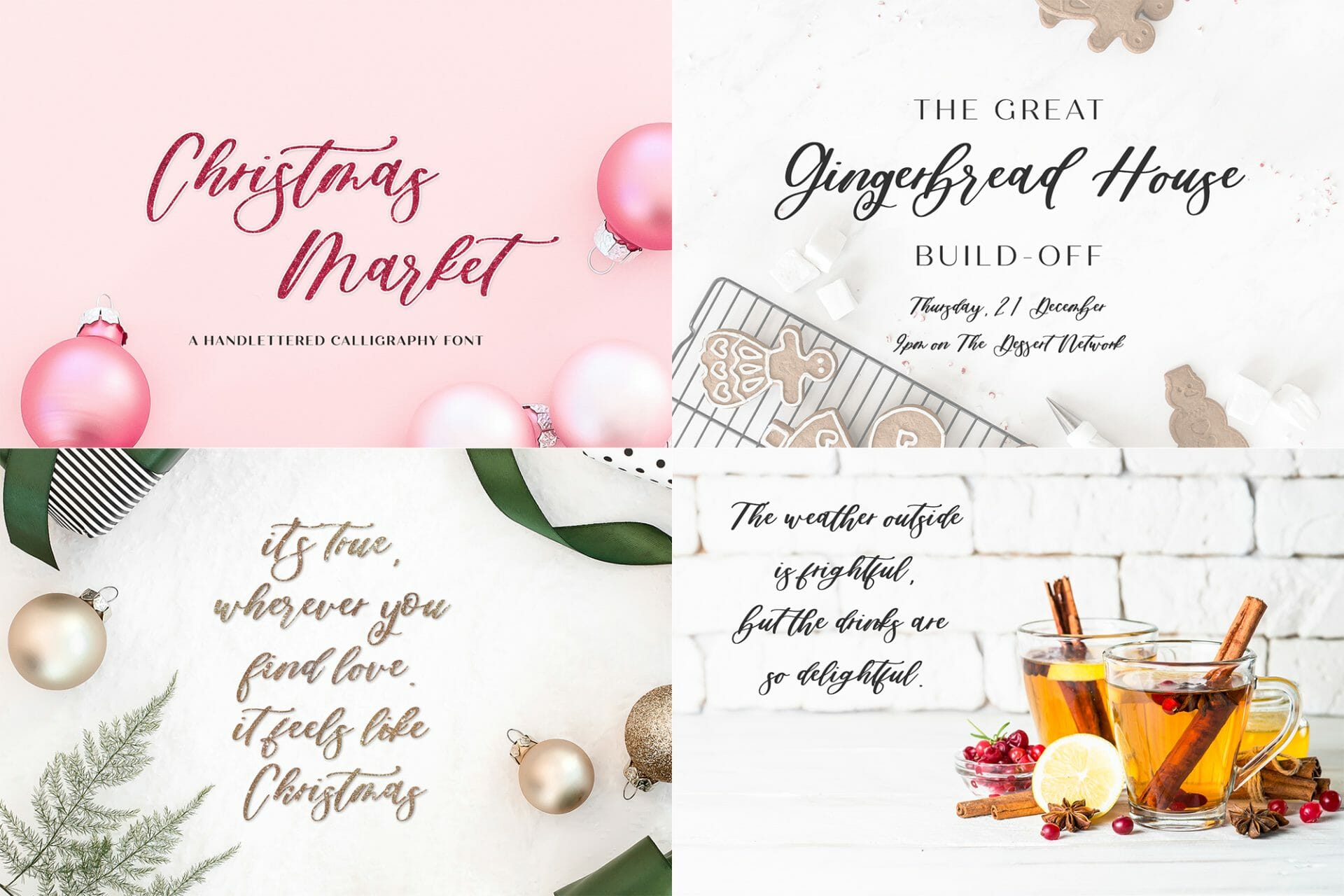
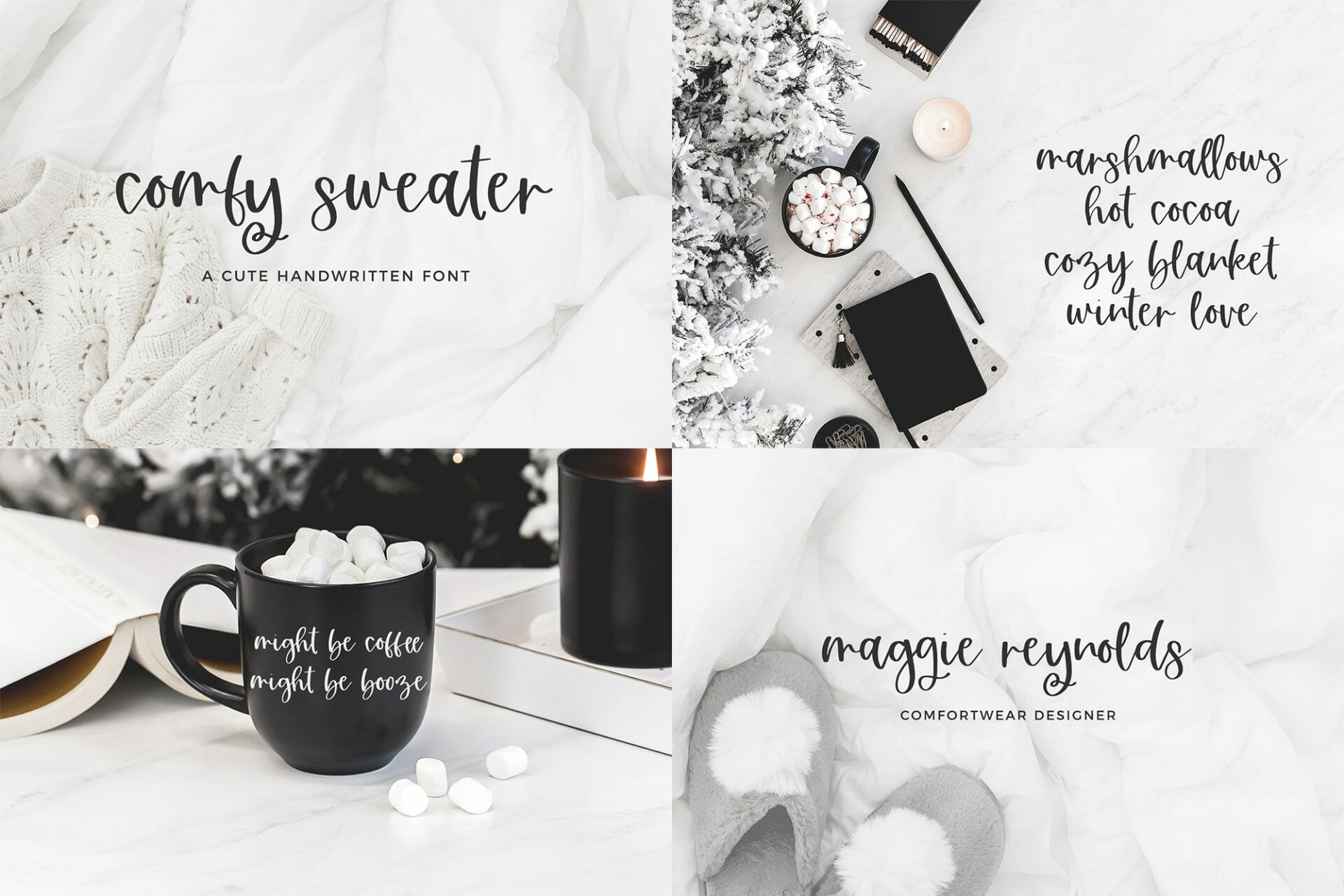
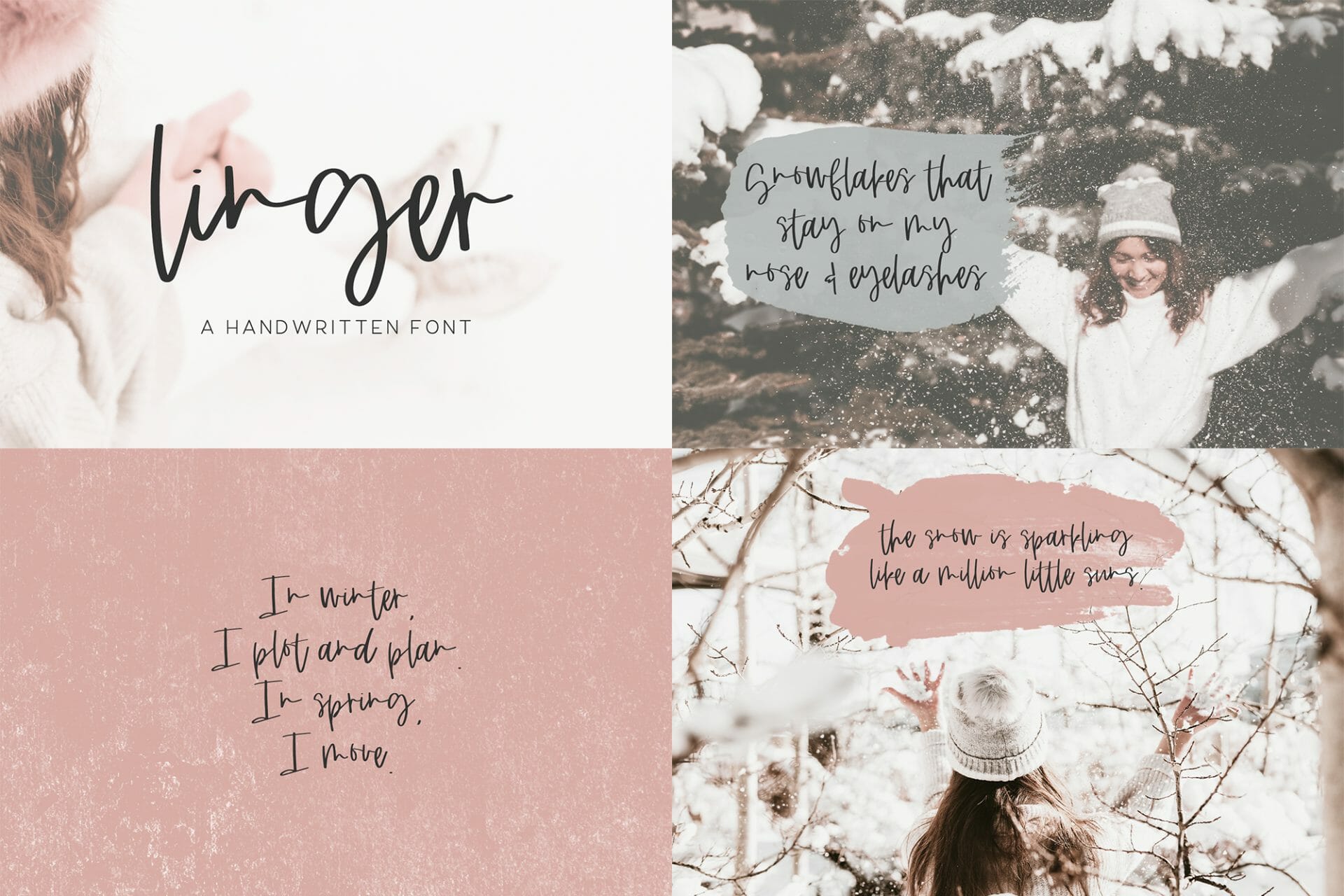
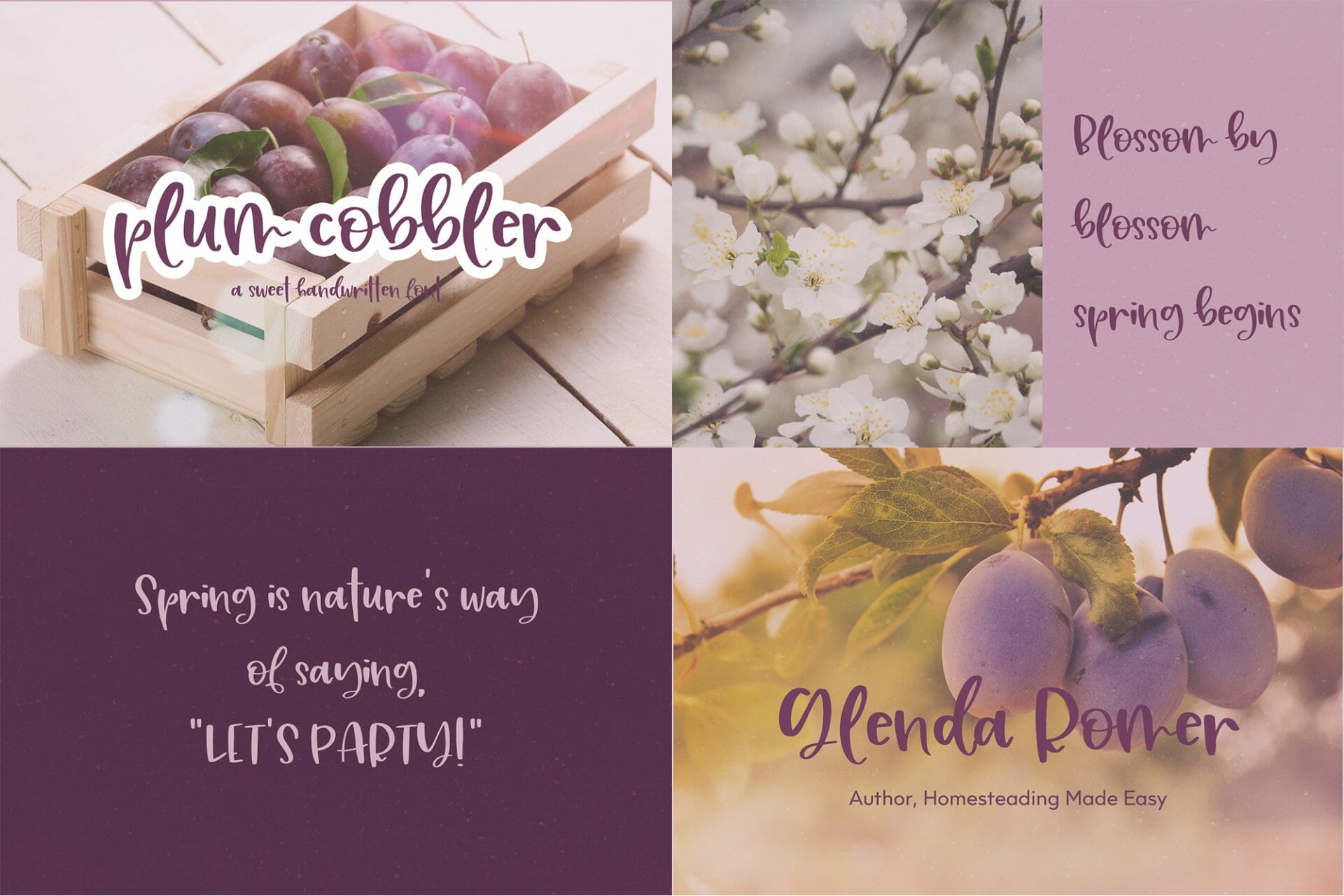
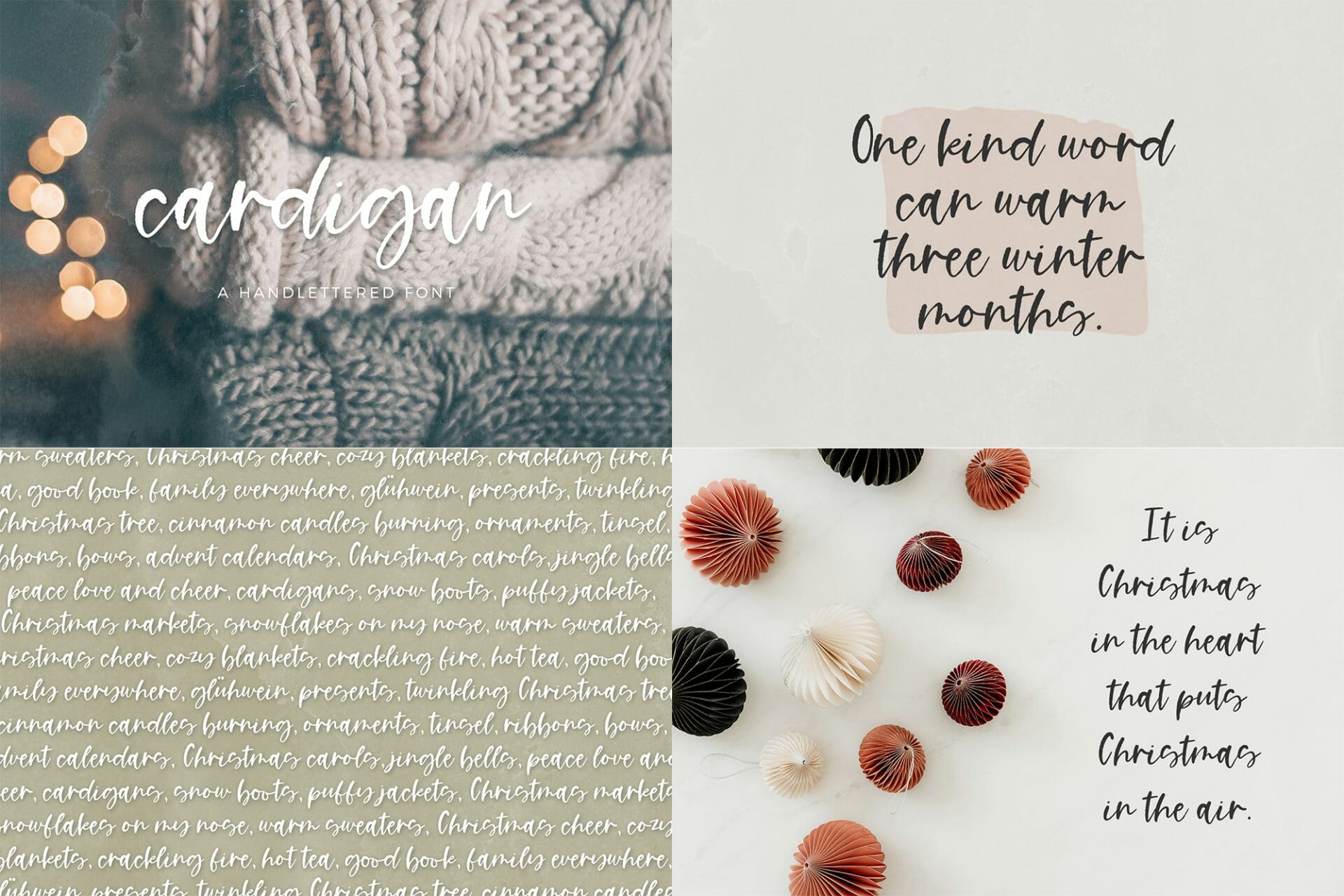
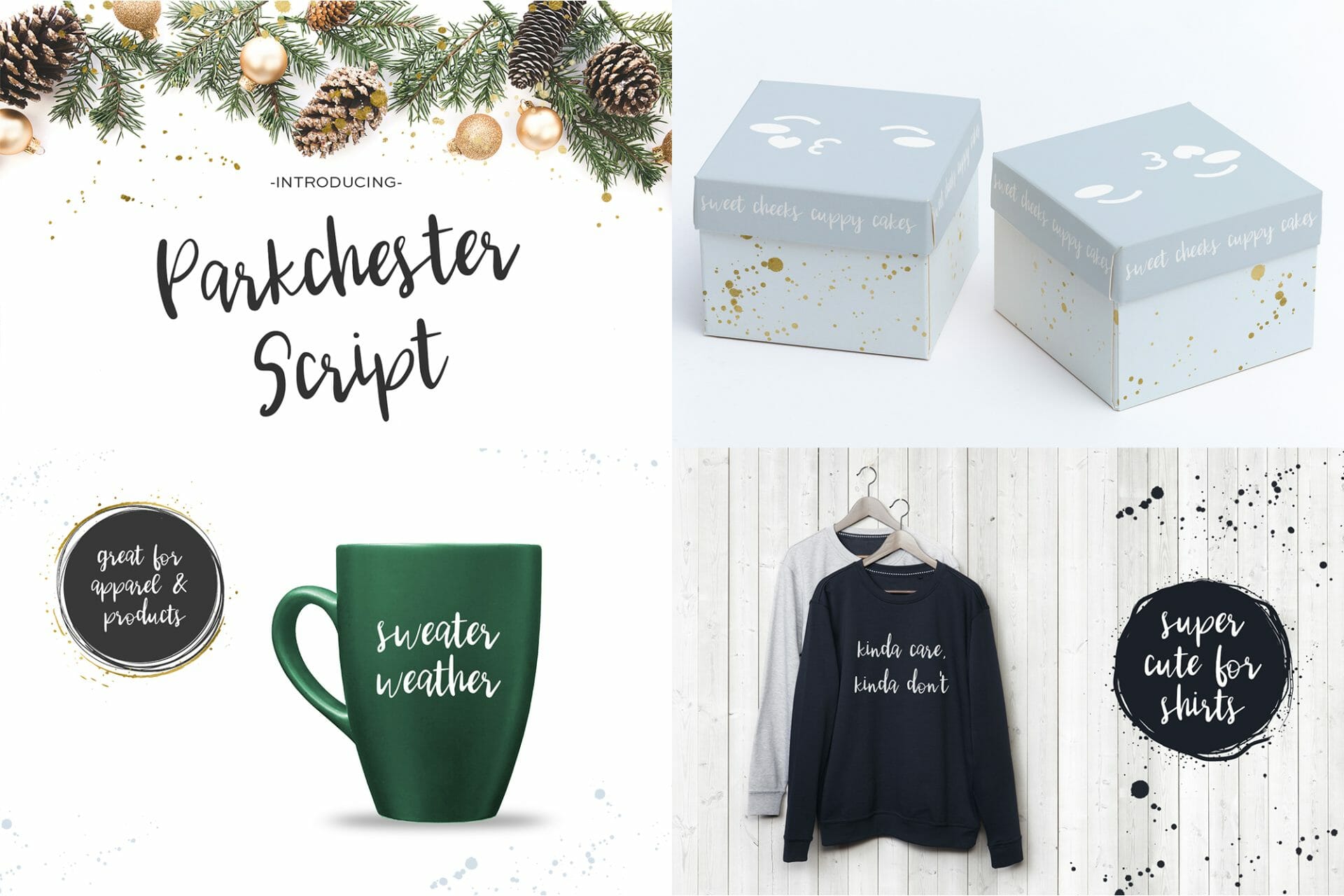
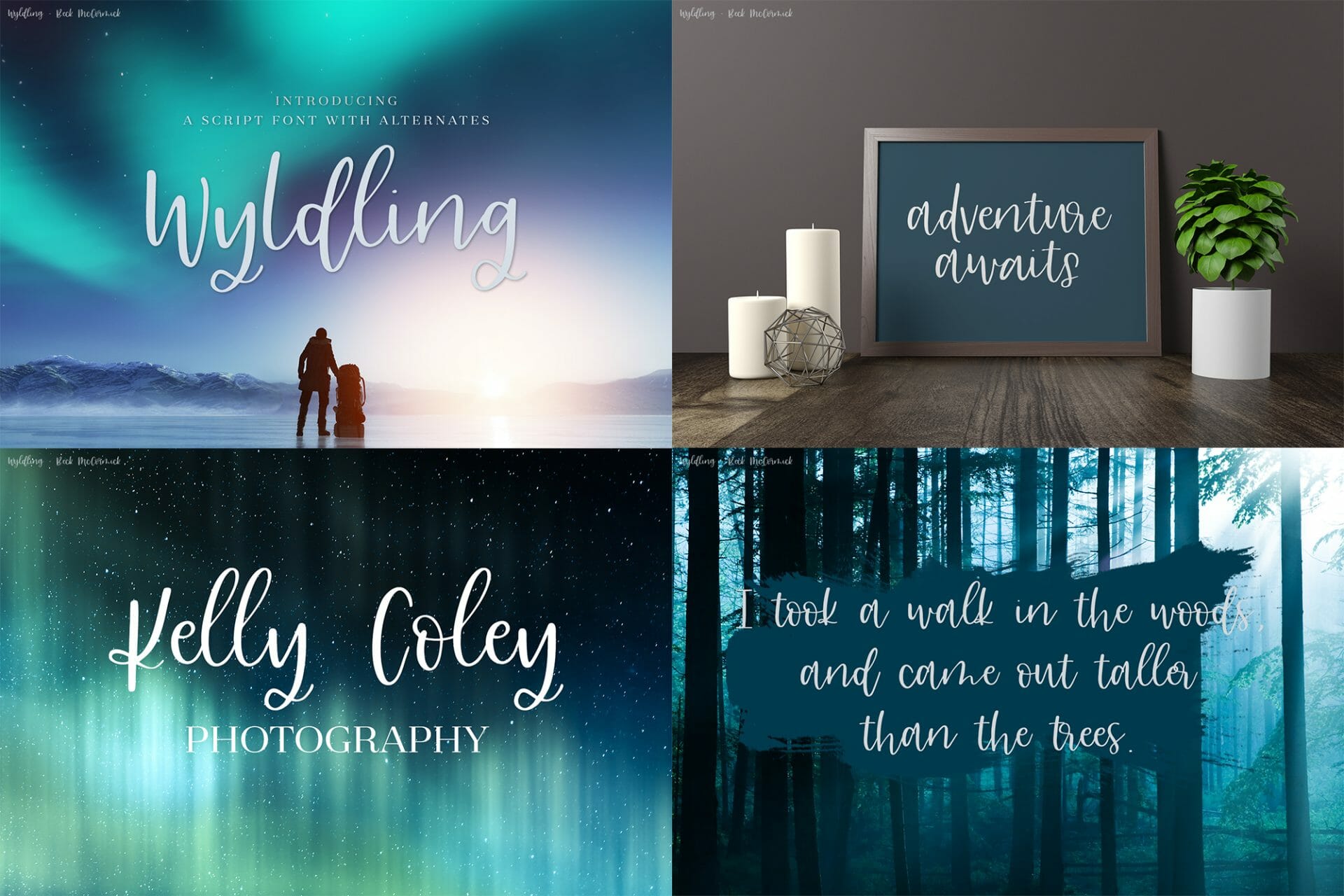
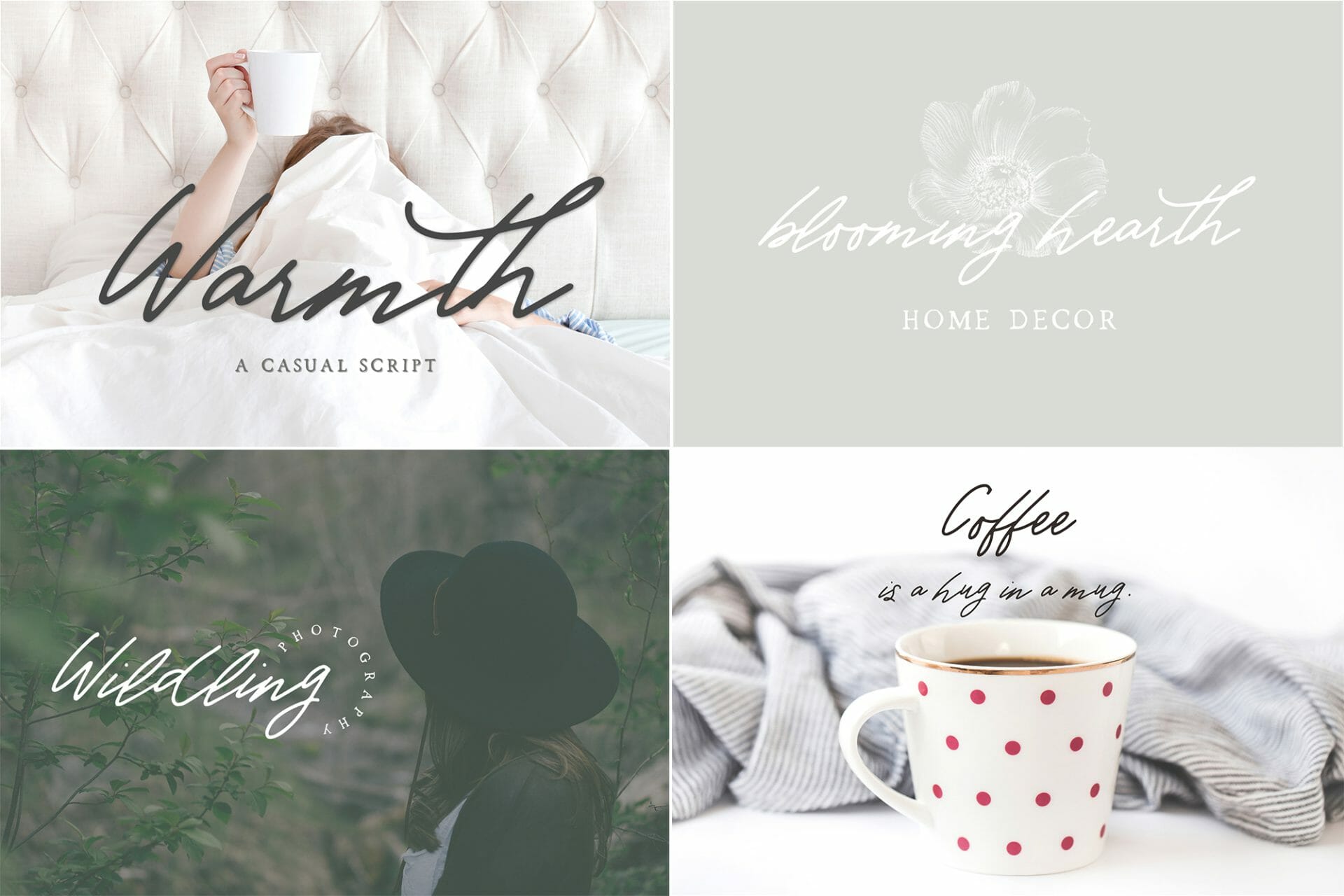
The font files are easy to use and download, so it’s very user friendly as well! The complete font list for the bundle can be seen on my site, but here, I’m going to talk about some of my favorite fonts, favorite font style, ideas, (which I have thousands of!) The image below provides some insight into what my Winter Bundle looks like. These images show that each font included in this bundle has its own personality! The fonts included in the bundle are mainly script fonts, but there are also fonts that mimic handwriting, and are perfect for any designs or projects you may have this Christmas season.
Once you’ve download your font files, you can do so many things with them! I always see page upon page upon page of awesome Cricut cutting machine projects on the web, so it’s really up to doing what you want to do with the font files.
Google is a great way to help you find just the right ideas that work for your letters and font files, as well.
Using your Cricut machine, you can cut a sticker, vinyl, or infusible ink, just be sure to visit a few websites beforehand to be sure you’ve got the right setup. I’m notoriously a crappy crafter, so I review instructions each & every time so that I’m not being wasteful with materials.
Using the Cricut official site, they can help guide you on the right path, and even give directions for basic projects. Using the font files for personal use, like Christmas gifts or even a decorative plate for cookies is always a really good way to show off your Cricut skills, and how well you can cut using the machine. Your project will turn out nothing but stellar, I assure you!
I think these Christmas-themed fonts & projects are a great way to get into the Christmas spirit. Also, Gluhwein is a great way to do that, too.
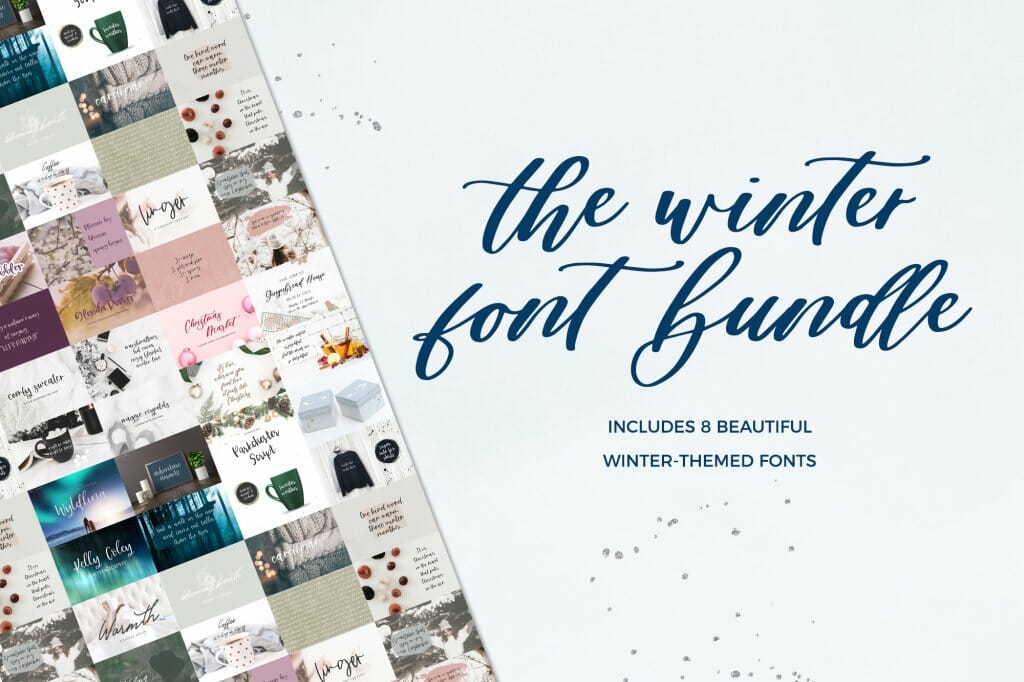
The winter font bundle is an investment in your design arsenal! The bundle includes a collection of script fonts, fonts that mimic handwriting, and many more, so it’s guaranteed that your perfect font file is in there waiting for you!
The Christmas spirit is brought to life by my bundle, and is sure to be perfect for you designers and you crafters alike. Lettering is a great hobby of mine and also what I get paid to do (I LOVE THAT), and I love being able to share it with other designers like you.
Just as a reminder, I include a personal use and commercial use license with your purchase, so you’re welcome to use this font collection for your own projects, as well as for your business!
If you want to give my fonts a bit of a quality test drive, you can always sign up for my mailing list on my website! I send out some freebie fonts after you sign up, I’m sure you’re going to love them!
Winter Fonts – My Inspiration Read More »
Let’s talk about Canva!
I don’t use Canva much…or at all…because I’m a total Adobe girl. (It’s basically necessary for me to create my fonts & SVG designs.) But if I wasn’t a designer, I’d totally be using Canva.
In short, Canva is a browser-based graphic design program that makes it easy for users to create their own designs. Canva comes stocked with various items — fonts, graphics, stock images — and it also allows you to upload your own items, as well, to create your designs!
One question that I get frequently is whether or not a Canva user can upload their own fonts.
The short answer is yes!
There are a few caveats, though. This feature is not available for free Canva account users. It is, however, available to Canva Pro, Canva for Enterprise, Canva for Education, and Canva for Nonprofit users. A user can also upload only up to 100 fonts. (If you’ve maxed that out, which is easy to do, you can remove some of your uploaded fonts to make a swap.)
I created a video to show you how to upload a custom font to Canva! If you aren’t certain about whether or not a pro account is right for you, you can sign up for a free trial, which is what I did here in order to show you how to upload a font!
Here’s a breakdown of the instructions for a Canva Pro account:
You’ll be able to find your uploaded fonts whenever you access the dropdown menu where the fonts are located. All custom fonts are found at the very top of the list, under the Uploaded Fonts section! I think it’s really nice and helpful that the uploaded fonts are separated from Canva’s font library.
Once you select one of the custom fonts, you’ll be able to type in it and create an awesome design!
Upload Custom Fonts to Canva Read More »