1. If you purchased through my website, your download link will be included in the email I sent you! Click that link to download, and skip over to Step 3.
If you purchased from Etsy, make sure you are logged into your Etsy account via an Internet browser (Safari, Firefox, etc.), NOT the Etsy app.The Etsy app will NOT allow you to access your instant download.
2. Visit your profile, tap “Purchases and Reviews.” Locate your order, and download your purchase.
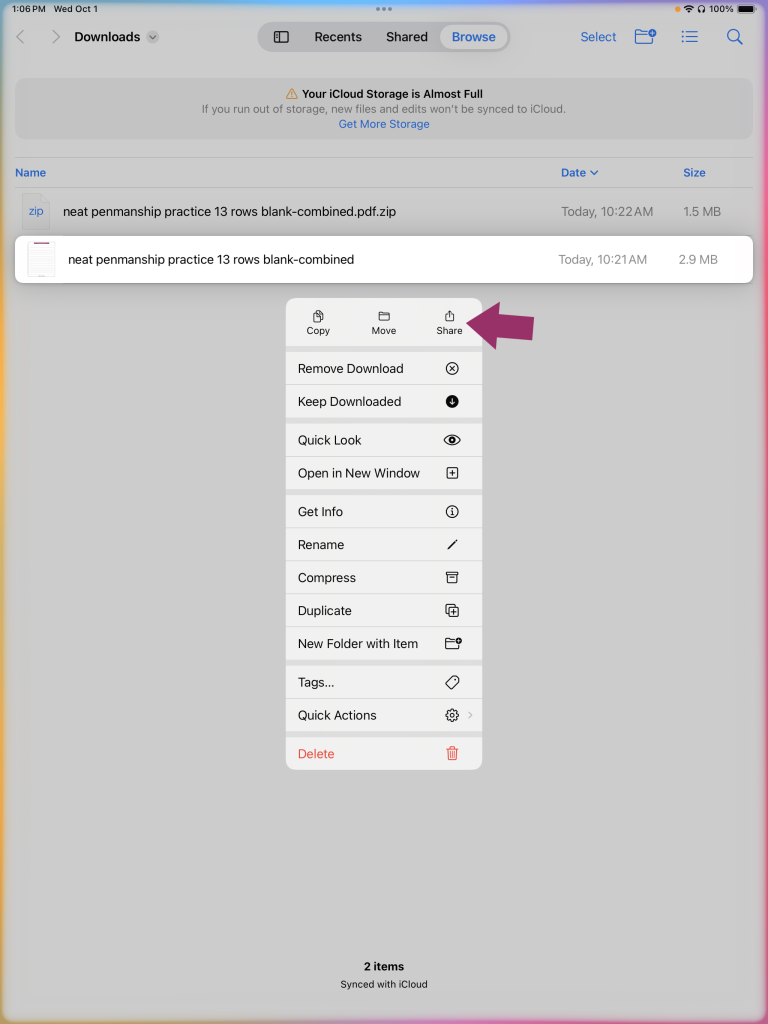
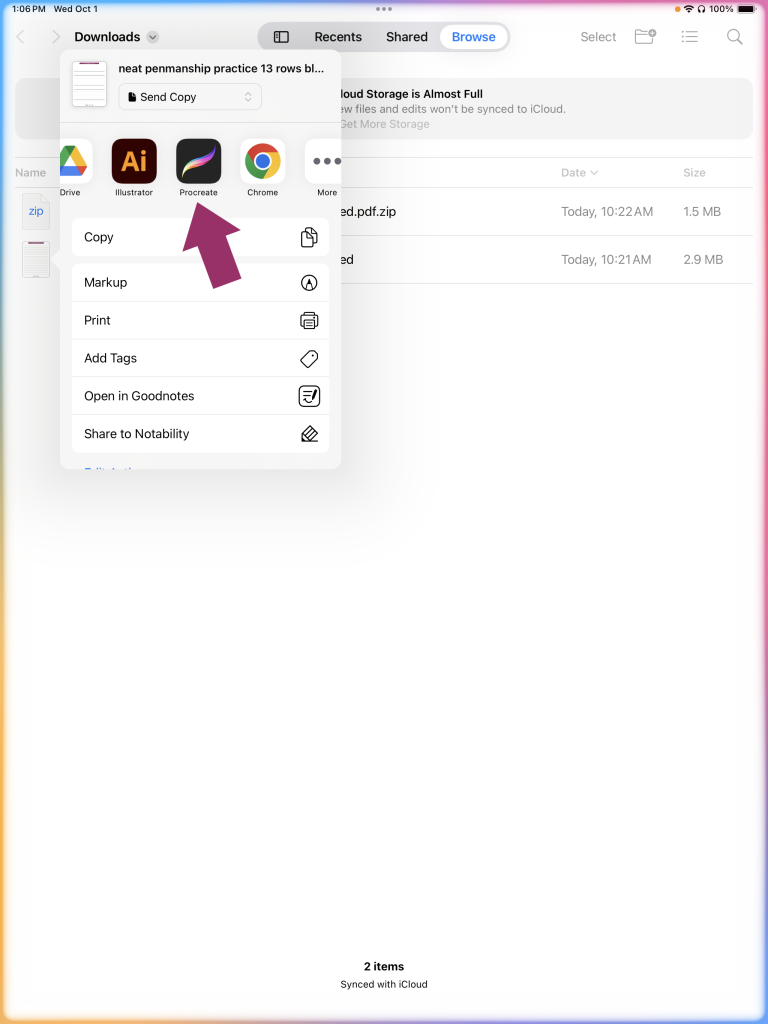
3. Locate your download (typically, the Files app unless you choose to save elsewhere), tap the folder to unzip. Long press on the .pdf file and select “Share.” Scroll through the apps shown and select Procreate.
4. Procreate will open automatically with the .pdf file. Each page of the .pdf will be shown in a new layer in Procreate. Select the layer you’d like to begin your practice on. Tap the plus sign (+) to create a new empty layer on top of your chosen layer, and begin lettering. You may use a brush of your choice, or the recommended brush included in your purchase.
Note for desktop or laptop download: You may also download the .zip on a desktop or laptop machine, and Airdrop the file to your iPad. Once Airdropped to your iPad, follow the same steps above to import to Procreate.
Importing brushes and color palettes is super easy, and both follow the same basic process. Check out the instructions below! I’ve also included two video tutorials showing you the steps.
1. Access your download, either through your browser downloads or by using the Files app. If you purchased from my website, your download link will be included in the email you received from me! If you purchased from Etsy, make sure you are logged in to your Etsy account via an Internet browser (Safari, Firefox, etc.), NOT the Etsy app. The Etsy app will not allow you to access your instant download. Visit your profile & tap “Purchases & Reviews” to locate your order. Download your purchase from there.
2. Locate your download (typically, the Files app unless you choose to save elsewhere), tap to unzip, tap the .brush file or .swatches file in the folder. It will import to Procreate automatically.
3. You can find your .brush purchase by looking in Procreate’s brush selection tool located by default in the upper right corner of the app. If you imported a color palette, you can find it by looking in the color picker section, and making sure you have palettes selected.
PRO TIP: If you download on a desktop/laptop computer, you can Airdrop the file to your iPad, or email the .brush file to yourself and open/download through your Mail app on your iPad.