Beck

How to Use a Heart Font In Your Next Design

My love of heart fonts is certainly no secret! I’ve already written one blog post that goes over heart fonts, how to use them, and what some of my favorite heart fonts are, so I figured why not do a post with some fun ideas using these fonts? (Just as an aside, you can see my entire Heart Font Bundle at a glance in the first post!) The use of these types of fonts are on the rise, and since the demand seems to be there, font designers like me are paying close attention to what y’all want!

The heart symbols aren’t really “standard” features in the font, though, so I thought that it might be helpful for heart font lovers to learn a bit about how to access those features!

autumn love popular hearts font

My Most Popular Hearts Font

If you’ve looked at my blog at all, you’ll know about my strange obsession & affection for my font, Autumn Love. Autumn Love, at the time of writing, is the only font I offer that includes heart connectors, which you can use in place of the space between letters. For that reason, I think it’s best to use this font again as we go over how to do the thing, whatever “the thing” may be for you! Personally, I think this font makes a great candidate for t-shirts, mugs, or invitations since the text is a fun, bouncy one & the hearts it uses are whimsical & fun, definitely helping to set the tone for a light & fun event.

Autumn Love is a pretty robust font – the download includes your standard upper and lowercase characters, as well as numbers, punctuation, and Western European Language Support. It’s also PUA-encoded. PUA stands for “private use area” and is essentially a fancy way of saying that each & every character – even the special ones – have a code attached to them which makes them easy to find whenever you use Character Map or FontBook, and access the extra features.

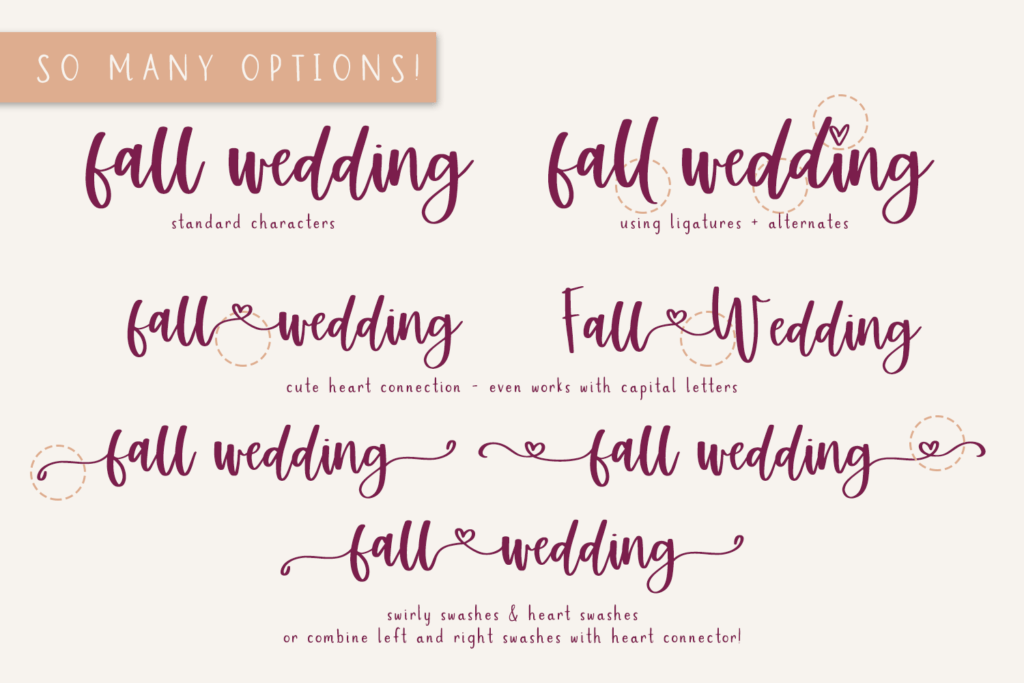
Those extra features, though, are where the fun begins! There are 132 alternate characters in this font, comprised of left and right swirly swashes, left and right heart swashes, heart connectors, and cute little heart icons dotting the lowercase i and j characters. I’ve also included some heart symbols as doodle elements. It also includes 11 ligatures – ligatures are combinations of letters that are automatically programmed together to look best. Take for example a word that has a double t in it – instead of two separate t characters that appear to have overlapping crossbars, the tt ligature shows up as one single character with a single crossbar for both! It’s up to the artist & their own personal style to include extra stuff like this!

You can find Autumn Love here, if you want to check it out!

Accessing the Heart Symbols

I highly recommend using Adobe CC software to access the heart symbols. It’s industry standard, as far as professional designers go, so many of you will already have this available to you! Adobe CC software makes it super easy – it’s really as simple as highlighting an individual character, viewing the options available, and selecting the option that fits best for you!
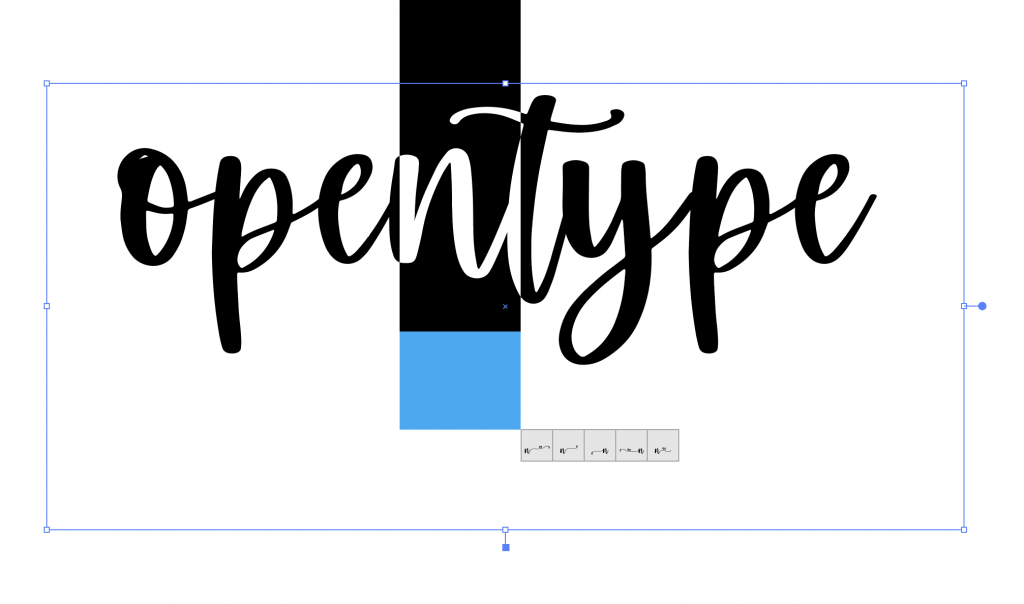
If you don’t have Illustrator or Photoshop available to you, or you’re running an older version than CC, there are other ways to get to those special characters! I mentioned Character Map (PC) and FontBook (Mac) before — and that’s exactly how you’ll get to those extra characters. You can reference my blog post on accessing OpenType features for a full explanation. In short, though, you’ll be able to search & sort through all characters included, make your selection, and then copy paste into the program you’re working in! This is applicable to basic programs such as Microsoft Word, or the Mac app Pages, or any program that you might be using on your computer. This is also how you’ll take your design from just ok and cute to absolutely wow in Cricut’s Design Space. (It’s unfortunate that Design Space doesn’t fully support OpenType features just yet, but hopefully, the developers will make this a feature soon!)

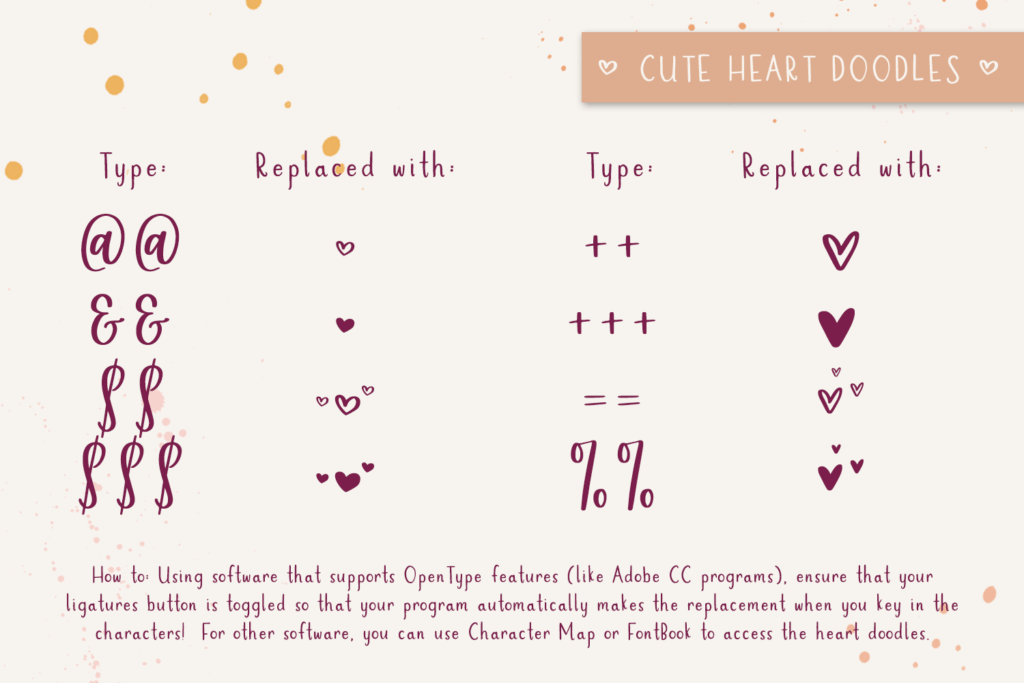
I mentioned that I’ve included some doodle heart symbols, as well. If you’re working in a program that supports OpenType features — meaning, Adobe CC products or other comparable software — you’ll be able to access these symbols easily!

With your ligatures turned on, you can type a few specific symbols, like @@ or $$$. Those characters will automatically be replaced with the heart doodles! I opted to program it this way out of convenience, because sometimes hunting down a symbol is a little tedious. (You can also search for these symbols in Character Map or FontBook, as well, and copy paste them into your chosen program.)

One thing that I love about these doodles is that they fit perfectly with the aesthetic of the font. Because they’re handdrawn, they have a more soft, handmade look & feel than you might find if you were to use something like a heart emoji or a heart icon in a mouse-made symbols font or icon set. There are solid and open versions for each one, as well! Don’t you just love that?!
heart font extra features

What Would You Use a Heart Font For?

Social Media

I personally think that there are limitless uses for a font like this, which is why I put together so many image examples when I listed this beauty for sale! Quote graphics on your Facebook page, Instagram or other social media accounts would be a great fit. Using it on ads or ad items would also be a great use – it’s very eye-catching, and the heart details give it a little extra something that your audience will appreciate!

Invitations + Menu Use

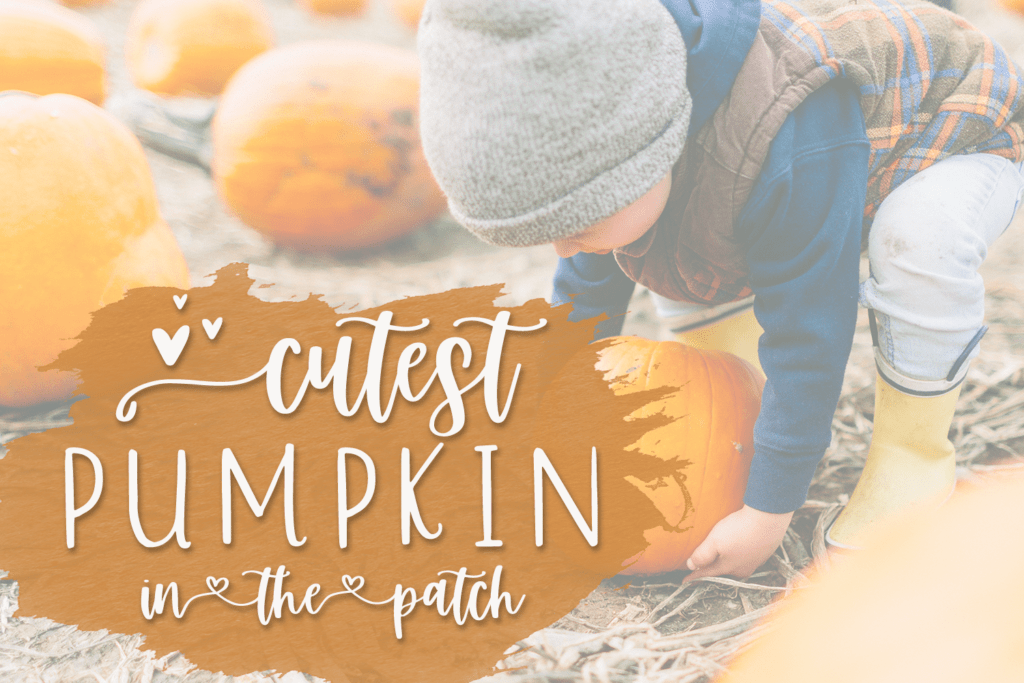
I also love the idea of using this font for a wedding invitation or a save the date – it already has heart text symbols in it, which makes it absolutely perfect for things that are love-related. If you’re the kinda gal who considers emoji use in these kinds of items, this style of font is definitely worth a look as your plans being to take shape.

Autumn Love would make a great choice to use on a food menu, too! How many times have you sat down to read a restaurant’s menu & it’s just the same, boring font that everyone uses everywhere? If you put your menu together with this font, it’s sure to be a conversational topic, too, which is always a good idea for meals.

T-Shirts + Craft Projects

This style also works well on a shirt design – Autumn Love does come perfectly paired with a sans, so it takes the guesswork out of choosing a second font to work with. Speaking of shirt designs, I’ve seen this font used quite a bit in the crafting world. It cuts really well on a Cricut machine – I even used it myself whenever I was making labels for my kitchen containers. (Insert a pic here of these)

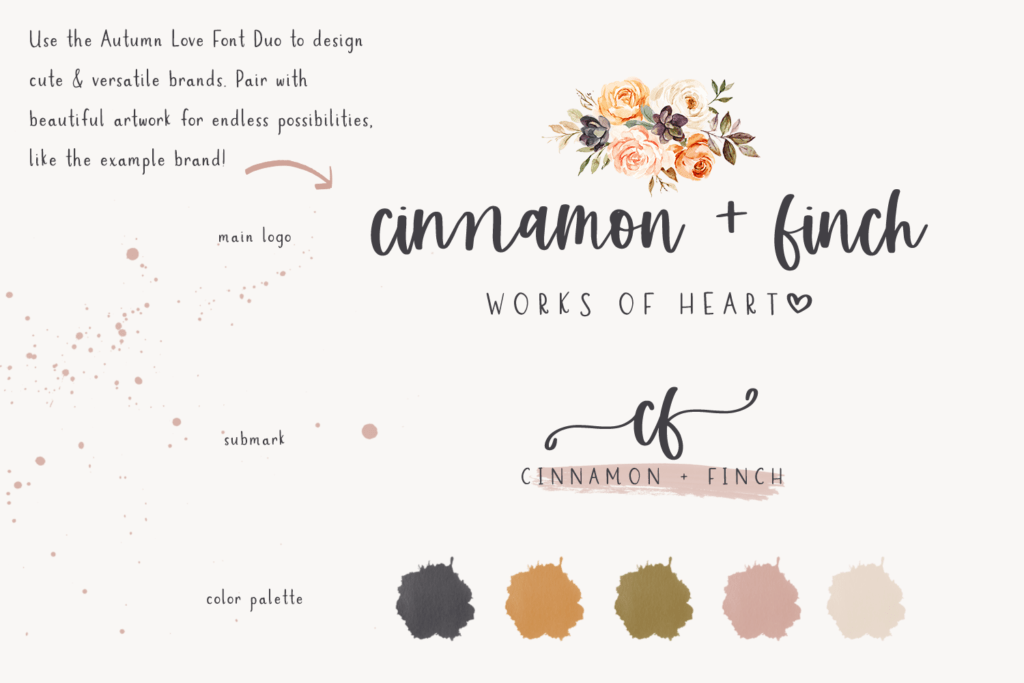
Logos and branding are a given – I can’t help but try each of my fonts out in a logo mock-up because of where I started my design journey. If I’m happy with the result in a logo, I always think that my customers will be, as well!

Because Autumn Love is also quite legible, even at a smaller size, it would be great for websites, too, or even WordPress theme creation – it would look fantastic on header elements.

heart font shirt design

Check Out My Website For Even More Fonts

Whether you’re in the market for a single font, or a collection of awesome fonts, I’ve got you covered! Search through my shop to find the perfect fit for your next project – you can even test it before you purchase it!

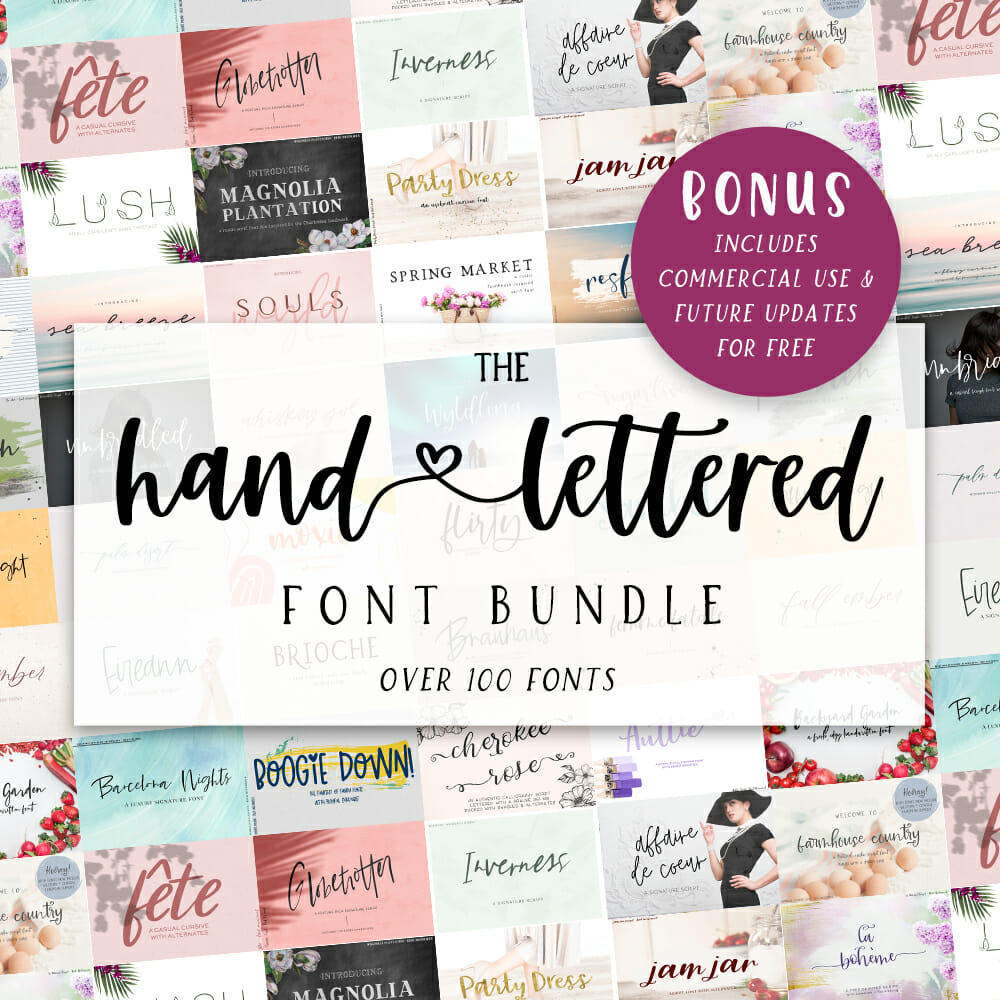
Or, if you know you want a really fantastic deal – over 200 fonts in a single bundle – you can hop right over, and check out my Handlettered Font Bundle!

How to Use a Heart Font In Your Next Design Read More ยป

Handwritten Fonts

Handwritten fonts have been growing in popularity over the last few years, which is fantastic for me because that’s what I design! I’ve noticed on some design resource marketplaces that handwriting fonts are now even getting their own special search category.

What exactly makes a font “handwritten” though? A handwritten font is any font that was created by your own hand – pen to paper, Apple Pencil to iPad, calligraphy pen, marker, you name it. There are so many (gorgeous) fonts that are mouse-made — created totally on the computer by dropping anchor points and forming the letter — but handwriting fonts possess very special qualities because of the love and care that comes from drawing each & every part with your own hand.

Handwritten doesn’t necessarily mean handwriting, though – if you take a look at the variety of handwritten fonts available to designers, you’ll find that a lot of them don’t even really look like our idea of handwriting at all, and that a lot of craftsmanship goes in to creating these fonts.

I’ve mentioned before that my own handwriting is total crap, and I still stand by that. I typically explain to people that handlettering is a lot like drawing — I mean, it basically is, but instead of drawing a landscape or a comic or an animal, I draw a letter!

Handwritten fonts can make all the difference!

Lemonlove Script Font

Why You Might Need Handwriting Fonts

I am 100% biased, but I think there are so many reasons why any designer needs handwriting fonts. My top reason, though? It makes design fast and easy, and alleviates the need to learn handlettering by designers.

Don’t get me wrong – I think it’s a fantastic, and often relaxing, skill to learn and being able to whip out some handwriting goodness for your client is awesome. But, if you’re on a tight timeline that wouldn’t allow for hours & weeks of practice…or you simply don’t have the inclination to learn & develop those skills…handwriting fonts are where it’s at!

The phrase, “Work smarter, not harder.” comes to mind. Handwriting fonts make it easy to focus on other very important details of any given project, especially when you know, understand, and appreciate the level of craftsmanship that goes into creating a handwriting font!

Handwritten fonts can be used for many applications – logo design, invitations, advertising, even using handwritten fonts on products or packaging. There are handwriting fonts for any occasion, seriously.

Handwritten fonts span a variety of styles – in this category of “handwritten” you might find a sans serif font, a script font, a display font … if the original letter set were created by your hand using some type of writing instrument, it’s a handwritten font.

I do all of my lettering digitally. My trusty iPad and Apple Pencil have helped me to produce over 140 fonts (and another 50+ on the way to being released as I’m writing this). I use the Procreate app, which I think is super cool because you can choose from a variety of brushes to use for your lettering. I typically use a calligraphy brush, but I love using marker brushes and pen brushes, too, because it enables me to produce a font with a slightly different style.

Let me show you a few of my handwritten fonts, because the variety you can get with hand lettering is truly astounding!

A Few of My Favorite Handwritten Fonts

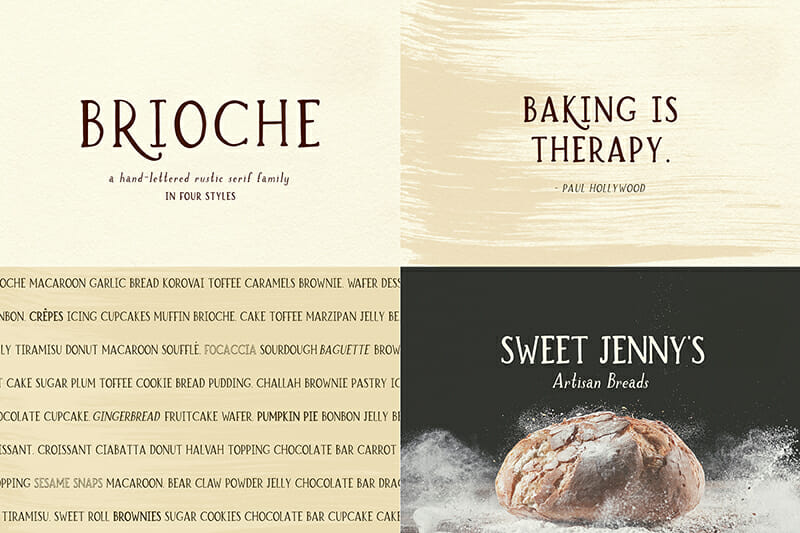
Brioche Family – A Serif Font

Brioche is a handlettered serif font that comes in four variations – regular, bold, italic, and outline. I think you get more bang for your buck when you purchase a font family like this. The bold weight is my favorite of the four!

Brioche has a bit of a textured edge, giving it a rustic farmhouse chic look. Because Brioche is very legible, it would make a fantastic fit for headers or even body text – even at a small size, it’s still quite easy to read. It has a slightly vintage aesthetic to it, but the handwritten nature of the font gives it such a nice personality. One of my favorite things about Brioche are the uppercase A, J, K, and R that have “legs” that drop below the baseline, adding a bit of play and interaction within the word.

Font families like Brioche are very valuable to designers that need more than one option, but also need them to look totally cohesive and like they belong together.

Insider tip: if you’re looking for a font that has an even more rustic style, check out Spring Market, which is by far the most popular typeface I’ve ever designed!

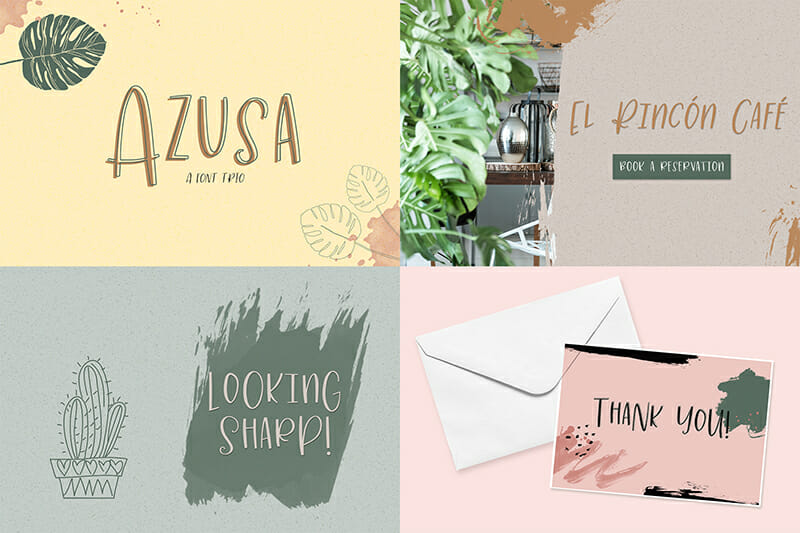
Azusa Trio – A Funky Sans Trio

Azusa is another font that has a few variations – regular, italic, and outline! In contrast to Brioche, Azusa is much more whimsical, and is an all caps font. Azusa could be used for headlines or creating quote graphics for social media. It’s a bit bubbly and feminine in nature. As far as legibility goes, it is definitely easy to read so keep this one on your list of legible, eye-catching, playful fonts!

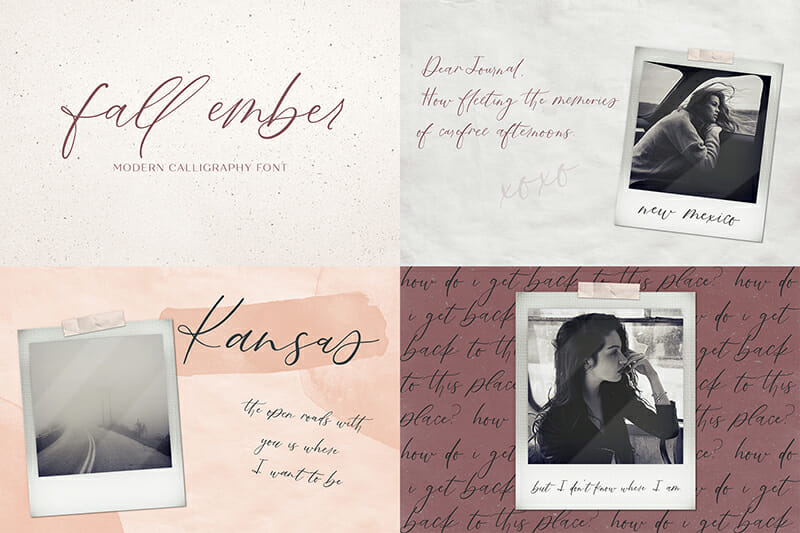
Fall Ember – A Calligraphy Script Font

Fall Ember would be considered a casual calligraphy font. It’s the perfect mix of flowy handwriting paired with the elegance of calligraphy. This handwritten font is one of my favorites to use in feminine designs and wedding invitations. This style of calligraphy is modern, and would make a fantastic fit for a bride who wanted something beautiful and effortless. My favorite things about this font are the ligatures – check out the title image and the name “fall ember.” Look at the ll, em, and er ligatures — notice how they connect a little differently, giving the font a truly handwritten feel based on the slight differences in how the letters were written!

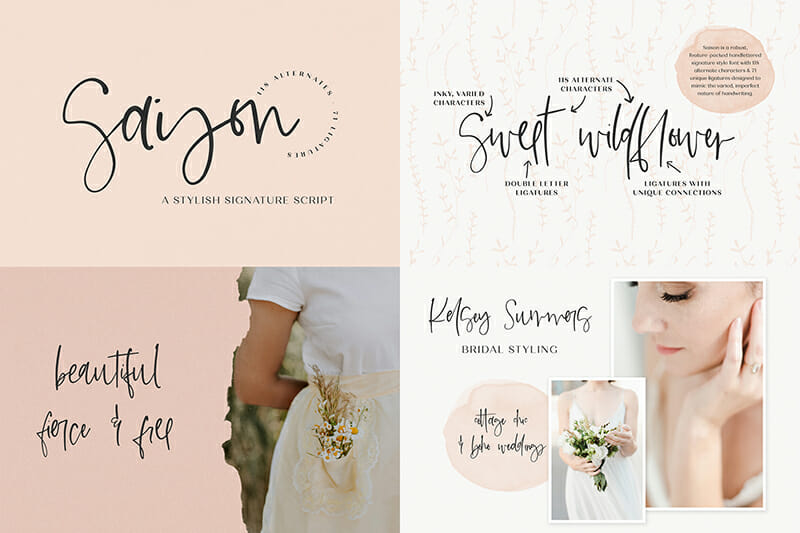
Saison – A Signature Script

Saison is a personal favorite of mine. I love its spontaneity, messiness, and all of the imperfections. Saison was a labor of love for me, because I created it and modeled it after my own logo that I handlettered. Over time, I received so many requests from designers asking what font I’d used — I always had to tell them that it wasn’t a font, it was hand lettering, and that I didn’t have a super close match in mind.

I don’t have to worry about that anymore, because out of my own logo, Saison was born. Saison would be considered a signature font or handwriting font, because it mimics the way a person might sign their name or hurriedly scrawl a note down. Legibility isn’t necessarily a strong point for Saison, which is intentional, but it does evoke a very modern, contemporary feel. Saison boasts 118 alternate characters and 78 ligatures, so that the user can make modifications to the text to enhance the handwritten vibe.

Branding projects are a perfect fit for Saison, especially for those individuals who want their logo to look like they’ve signed their own name. Check out the example below – I’ve included my own logo, as well, so you can compare!

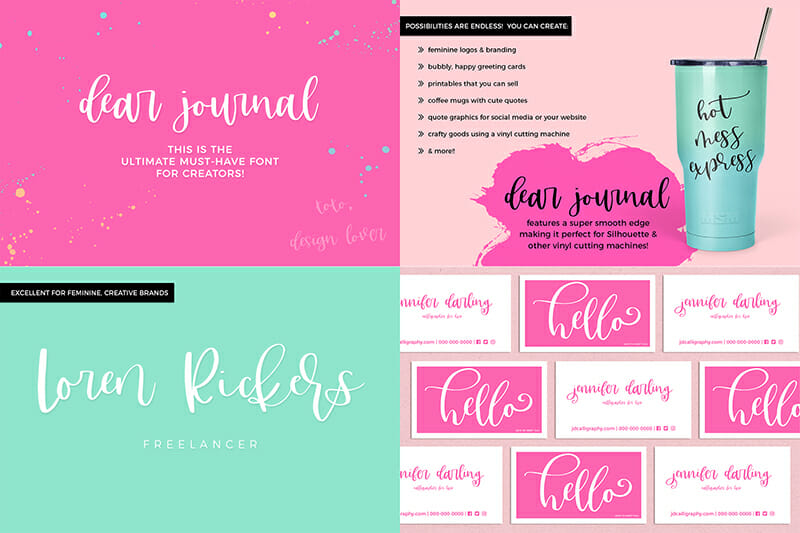
Dear Journal – The Must-Have of Calligraphy Fonts

Dear Journal is another calligraphy font beast! There are so many extras!! Feature-rich fonts are my thing, y’all. I feel like if you’re going to design and letter handwritten fonts, you should always make them actually look like they’re handwritten instead of striving for totally perfect lines and corners. That’s not to say that you can’t or shouldn’t refine them…but there should be no mistaking that what you’ve produced is actually handwriting. Handwriting is imperfect, and there are always slight variations and inconsistencies, and being able to offer that option is something that will never get old for me.

In contrast with the effortless, flowy Fall Ember, Dear Journal is chunkier and bouncier – it is a bounce calligraphy font! “Bounce” means that the characters do not stay on the same line. They vary a bit, making the letters look like they’re dancing around. The standard lowercase set is the “median” version of the lowercase letters. They’re not too tall, and not too short. The first stylistic set is super bouncy with exaggerated ascenders and descenders, and big loopy flourishes. The second stylistic set is much more subdued. These letter sets can be mixed and matched according to how you’d like your project to look. I’ve included an example of what I mean below – look at how much the words change simply based on your letter selection!

As far as calligraphy fonts go, this one is my go-to when people ask what font I use in my SVG files. Insider info – I don’t actually use fonts, those are all handlettered, too. BUT, I designed and lettered Dear Journal so that I could point people to an option that would be the closest stand-in possible. I think that this is the font to use for crafters and creators — I say as much on the main image, anyway. This font makes it so easy for someone to produce products that have a handwritten look & feel, provide enough variation, and make it look like the real thing. I mean, I guess technically it is the real thing since it is handlettered, after all!

PS, your secret is safe with me. I won’t tell anyone that you didn’t do it yourself. ๐Ÿ˜‰

Get Access to 140+ Handlettered Fonts through my Website

If my case wasn’t strong enough already, I have the best deal around for handwriting fonts. A few years ago when I started producing fonts more prolifically, I decided to bundle them all up together. As a logo & branding designer, I thought about what I, personally, would want in a bundle. The answer was…well, all the things, really. I want all of the fonts I could possibly get, and I would want to feel like I’m getting a tremendous value.

Enter my Handlettered Font Bundle.

Y’all, I truly love what I do, and nothing makes me happier than seeing my fonts in the wild, getting used for a variety of things. It’s so rewarding, and exciting, and I feel like this is one thing I can do to “take care” of the customers who have trusted my creative work and continue to inspire me to produce handwriting fonts.

Ultimately, you’re getting what will eventually amount to hundreds of fonts worth thousands of dollars — it really is a fantastic deal, and I’m so excited for you to take advantage of it. If you’re on board with adding over 140 handwritten fonts to your font collection, click that button below and get started. You won’t regret it!

If you have any questions, please feel free to drop me an email or a contact form. I want you to feel totally comfortable with your investment!

Handwritten Fonts Read More ยป

How to Add Fonts to Cricut

Here’s the TL;DR summary!
  • Yes, you can use custom fonts in Cricut Design Space!
  • You need to install the font on your computer first.
  • Look in the System Fonts section of Design Space for your newly installed fonts.
  • Design to your heart’s content!

It’s been a minute since I offered up a how-to post, so today we’re going to be addressing how to add fonts to Cricut Design Space.

Here’s the deal. Cricut is the machine, and Design Space is the software you’re using. You can absolutely, positively use custom fonts in Design Space! In fact, you can use any fonts installed on your computer in Design Space.

This is a question I get quite often, especially as it relates to my font bundles…and even more specifically, as it relates to my biggest Handlettered Font Bundle. I get it – for a lot of folks, it feels like a little bit of an investment into their crafting hobby or business! You definitely want to make sure that the fonts are going to work with your software first! Since I provide .otf and .ttf files, you’re golden.

Let me tell you how to do the thing!

You Can’t Upload Fonts to Cricut Design Space.

Don’t worry, though, your project you’ve gotten ready to create is still safe – let me tell you the biggest mistake that Design Space users make as it relates to custom fonts. And before you ask, no, trying to upload them using an iPhone isn’t the biggest mistake I see.

Many of them try to directly upload the fonts to Cricut Design Space.

That won’t work, my friends. This usually results in a frantic email to me, telling me that my fonts “don’t work” in Design Space, they keep getting an error message no matter how many times they try to upload it to Design Space, and it’s entirely the “wrong file type.”

The fonts do work, they are the correct file type – you just need a quick tutorial on what you need to do.

Spoiler alert: It’s really simple.

Just Install the Font File on Your Computer

You need to install the font on your machine first. This is the very first step that you need to take in order to add fonts to Cricut Design Space; I promise, it works!

Getting Your Fonts to Cricut Design Space

Let me give you a quick step-by-step on how to install fonts on your computer! (Just as a heads up, you can find this exact same information on my blog post about how to install fonts – this particular post is just a little more geared toward Design Space users!) These instructions will work with any font download that you find, whether it’s fonts you purchased from me, another designer, or even font downloads from a website that offers free fonts for anyone to download!

I provide OpenType and True Type files in my downloads, as well as webfonts. I would recommend working with the OpenType version – it’s the one that ends in .otf in the zip folder that contains your font download!

Mac Instructions – follow these simple steps!
1. First, download the font! ย 

Once downloaded, youโ€™ll need to access your browser downloads the same way you would any other download. ย Youโ€™ll want to save the files to your computer โ€” the easiest way would be to drag to your desktop. ย My font files (.otf, .ttf, and web font files) are zipped up together. ย Youโ€™ll need to extract the files first. ย This should be a simple double click on the zipped up file, and confirming any dialog boxes that pop up.

font installation on Mac computers
2. Extract (Unzip) The Font Files

Once the folder is unzipped, itโ€™ll reveal the contents I previously mentioned. ย I provide various formats for your convenience, but you will only need to install a single file. ย I would recommend the .otf file for installation. ย Double-click the file, or right click on the file so that the menu appears.ย  (Image on the left of the right click option!)ย  Select Font Book when it appears from the Open With menu.

Side note with a little info: FontBook is the program that comes standard on a Mac machine to assist with font installation and organization. It also functions to provide a glimpse of the glyphs that are included in the font.

3. Install the Font File

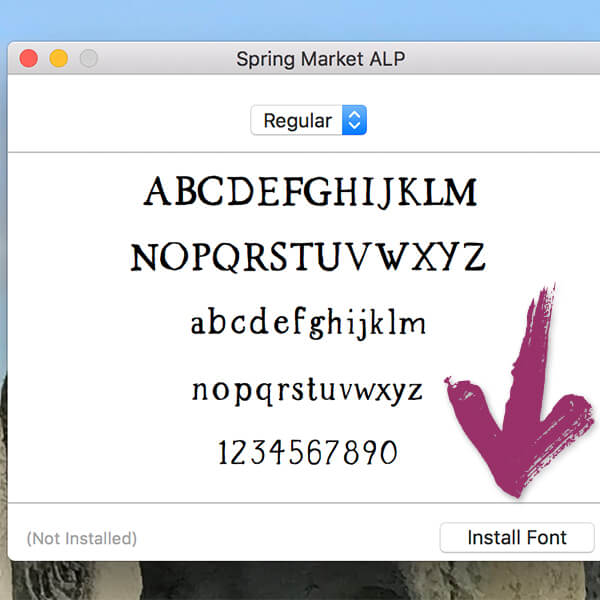
FontBook will pop up with a little window for installation. ย Click the โ€œInstallโ€ button. ย Similarly, you can copy/paste the font file directly into your computerโ€™s font folder. ย Command+Shift+C will bring up your computer. ย Double-click Macintosh HD (or whatever your hard drive is named), then double-click the Library folder. ย Within the Library folder, youโ€™ll find the Fonts folder. ย Paste the font files in this folder – pasting the .otf in this folder means that it’s automatically installed on your system.

font installation of Spring Market on Mac computers
PC Instructions – for Windows Users
1. First, download the font! ย 

Once downloaded, youโ€™ll need to access your browser downloads the same way you would any other download. ย Youโ€™ll want to save the files to your computer โ€” the easiest way would be to drag to your desktop. ย My fonts (.otf, .ttf, and web fonts) are zipped up together. ย Youโ€™ll need to extract the files first. ย This should be a simple double click on the zipped up file, and confirming any dialog boxes that pop up. Overall, the process is the same for any Windows machine.

2. Extract (Unzip) The Font Files

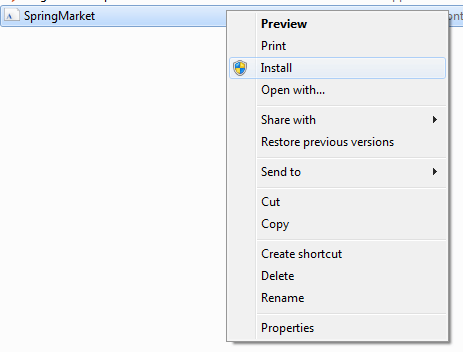
Once the folder is unzipped, itโ€™ll reveal the contents I previously mentioned. ย I provide various formats for your convenience, but you will only need to install a single file. ย I would recommend the .otf file for installation. ย Double-click the file, or right click on the file so that the menu appears.ย  (Image below of the right click option!)ย 

3. Install the Font File

For a Windows machine, you can right click the font file, and then select โ€œInstallโ€ from the menu that pops up.ย  You can also copy/paste them into your computerโ€™s font folder. ย That can be accessed by your Start Menu > Control Panel > Appearance and Themes > Fonts. ย Simply paste them in there!

I mentioned above that a FontBook on a Mac machine will allow you to view all characters contained within a font. On a Windows machine, you can use Character Map for this! I personally use a Mac for all of my design work, but I have used Windows machines before so I’ve been able to use both programs to tool through font selections!

font installation on Windows computers
font installation on Mac computers
A Few Tips & Tricks
  • If the font you just installed doesn’t show up in the program you’re using, restart your program!
  • You cannot drag & drop the .zip file into your system’s font folder — make sure you unzip it.
  • You cannot install the webfonts on your computer; in most cases you won’t ever touch these files.

Using System Fonts in Design Space

Wait, what does “System Fonts” even mean & how do you use it on a project?

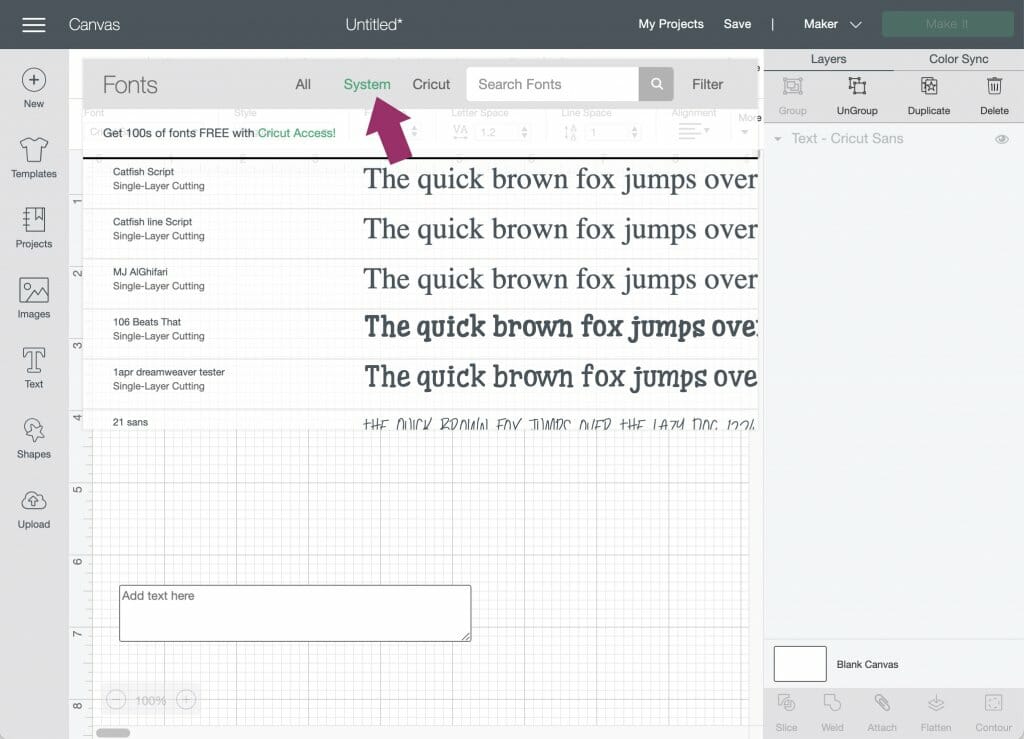
That, crafters, is what Design Space calls the fonts that are installed on your computer. The “system” part is your computer – Design Space accesses what you have installed, so you can use the fonts you downloaded in Design Space! You can filter the fonts you have access to in Design Space by selecting the dropdown menu with the text tool. When you select “System Fonts” it’ll bring up everything you have installed on your machine. Easy peasy, right?!

Give it a try!

Select a system font of your choice from the font dropdown, and adjust your font size if needed. I picked Autumn Love for this example! I chose a script font for an important reason – this type of font style needs a few adjustments before sending to your Cricut machine for cutting, so I thought it might be a good thing to address.

using system fonts in Design Space

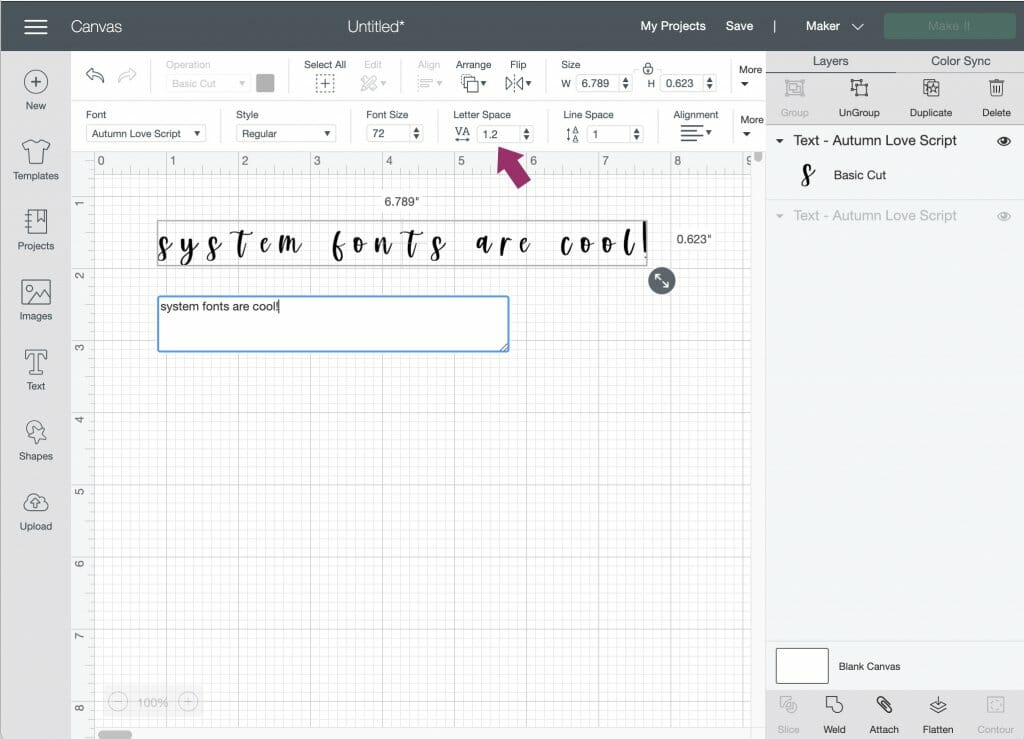
When you select the text tool, a text box automatically appears.

Now, type!

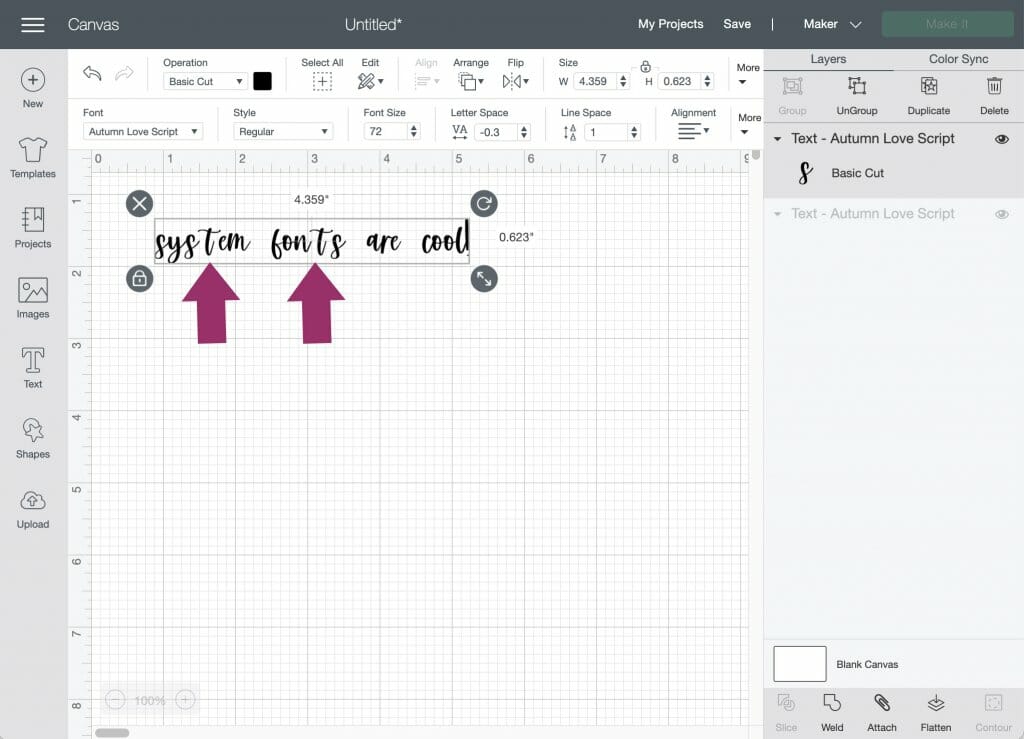
You’ll notice that script fonts have the letters separated. This isn’t “normal” for the font — definitely not the way font designers intend it to look — but this is normal for Design Space. You can adjust the letter spacing pretty easily by making the letter spacing number smaller.

using system fonts in Design Space

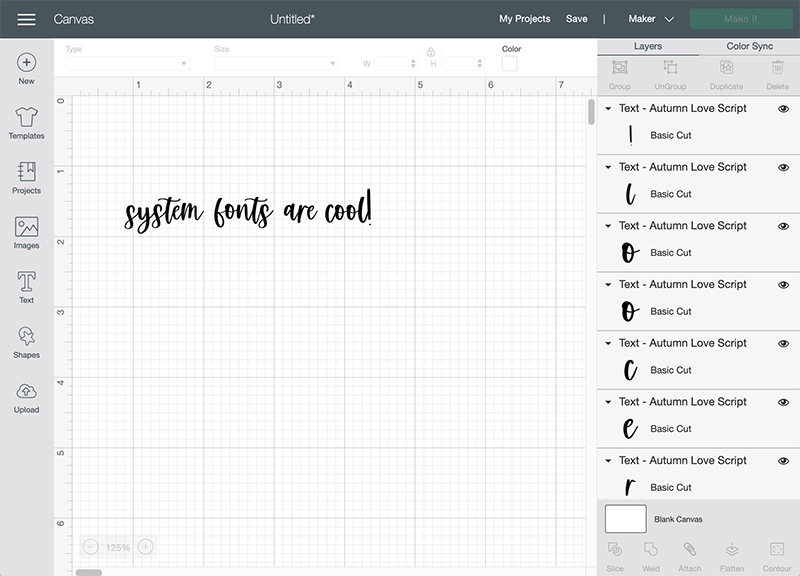
Even after doing this, you may notice some of the letters still aren’t connected – there’s also a simple solution to this. In your Layers panel, click the ungroup button. This puts each letter on its own layer so you can move the characters individually!

Please, for the love of everything fonts, adjust your letter spacing so that the font looks how the designer intended it to. This is probably my biggest pet peeve with Design Space.

using system fonts properly in design space
using system fonts properly in Design Space

You can make use of the search bar to filter your font choices if you know the name of the font you’d like to use, or you can just scroll and find it by the font name!

There are other options in the design panel, but we’ll address how to use those things in another blog post in the future. What’s important is that you’ve got this whole how to add fonts to Cricut thing down!

Make sure before you send to your Cricut machine that you weld the design so that the letters come all the way together as one piece! That is super important whenever you’re using a script font. That’s really all there is to it! Now you’ll be able to use custom fonts for your design projects!

What About Cricut Fonts?

You’ll notice that, in addition to system fonts, you also have the option to select Cricut Fonts as one of the filtering options. Whenever you do, you’ll be faced with a lengthy list of fonts that are available to you, either for free or for an additional (usually small) fee, directly from Cricut.

It’s a quite robust selection, and it does make it quite easy to add to your font collection via the Design Space interface. You can purchase these fonts onesie-twosie, but it’s also important to note that if you have the Cricut Access subscription, you’ll get access to over 500 fonts in Cricut Design Space!

So, what’s the difference between using Cricut Fonts versus finding your own custom fonts, downloading, & installing them? The fact that you get to keep the font files, that’s what! While the Cricut Access subscription is super handy and full of good stuff, you don’t actually get to have the fonts installed on your computer – they’re only available through Design Space. For most folks, that’s not a problem – I would assume that anyone purchasing fonts for their Cricut machine would likely only be using them for the machine…but if you’re a designer like I am, and you routinely make use of fonts in your daily work, it sure is handy to be able to use said fonts in whatever design program you’d like…whether that be using the font in Cricut Design Space, Illustrator, Photoshop…you get the point, right?

A Few Other Tips & Tricks

OpenType fonts (as opposed to True Type) are extremely robust with features and extra design components, and newer versions of software make it easy to find & use those features. Unfortunately, Design Space’s latest edition doesn’t quite fully support OpenType features as readily as font designers like me would want. (True Type fonts do include the features, as well, but they’re not as easily accessible with that particular file type.)

I often get asked, “How do you get those swooshy lines?” or “Where do I find the letters with the hearts?”

Those are the OpenType features. But don’t worry, you can still use them in Design Space; it just takes a few extra steps. One of my most referenced tutorials is for accessing OpenType features, so I would highly recommend heading there to read about how to get to all of the extra features. In a nutshell, though, you’ll need to locate the special character, then copy/paste the extra characters from Character Map (if you’re using a Windows machine) or FontBook (if you’re on a Mac). It may be a little tedious at first, but once you understand the process, it’s only a few extra steps to take your design from nice to WOW.

I will eventually be putting together a step by step blog post, but there are tutorials that already exist for this type of thing that you can search for!

Do you want a huge selection of fonts in Cricut Design Space?

Check out my Handlettered Font Bundle. Yes, you had to know I’d throw a shameless plug in there. But also, crafters purchase this bundle all the time – it’s got so many awesome fonts in there that are perfect for cutting because they have a super smooth edge. Using handlettered fonts like these give your project an extra special look & feel! I know the number of projects is endless, but I especially love seeing these fonts being used for t shirts and mug designs – I’ve also seen a few crafts where the fonts were used to make lovely greeting cards, which I thought was a great idea!

This particular bundle is awesome because it includes so many fonts – more than 200!! Don’t worry about licensing, either – it includes personal and commercial use, so you can sell the crafts you make using these fonts!

How to Add Fonts to Cricut Read More ยป

Fonts With Hearts

Heart fonts have been on the font scene for a little while now! They’re typically pretty popular with crafters – it’s so easy to create things, and the feature is built right into the font. They’re popular in a variety of design-related applications – shirts, mugs, and stickers…but they’re also popular on a professional front, too! Logo design is the most common usage that I see for fonts like this, because it gives the business owner a very simple way to communicate that they love what they do, or that the service or good they’re providing comes from their heart.

I have a few fonts that have this sweet feature – Lovegame, Wavelength, and Auttie to name a few…but there is one font that is my go-to from my collection.

My Favorite Font with Hearts

Y’all are probably no stranger to Autumn Love. This font duo has been featured on my website multiple times, because I simply can’t get enough of it. I’m not sure if it’s normal for a designer to love one of their fonts so much, but I truly do love this one! I’m sure there’s some really bad joke in there, something about love letters or whatever, haha.

Autumn Love is a handwriting-style calligraphy font. It’s bouncy, super cute, and the letters are super legible. This is extremely important when introducing another design element, like the hearts, into the mix with a cursive font! It’s my most popular font with a connecting heart, no doubt!

Don’t you think this would be perfect for a Save the Date announcement or wedding invitations?! Check out the example below!

Tip: Fonts With Multiple Files Included Are More Versatile

Autumn Love is also pretty special because it’s a font duo – it comes with a handlettered sans font that so that you can automatically pair it with a second font right off the bat! This is the sort of thing that crafters and designers love – it makes it totally foolproof! These two fonts work perfectly hand-in-hand.

It also includes a variety of swash options – there’s a more simple left & right swash option, as well as left & right swash options that include a heart. I even have alternates for the lowercase i and j where the dot is a … you guessed it … heart. Plus, I have extra characters programmed where you can add your own little heart or grouping of hearts very easily to whatever design you’re working on!

You might be wondering how easy it is to use and connect words with the cute little heart feature – I usually get this question often. These alternate features are a piece of cake, and even if you don’t have super fancy-schmancy design software, like Adobe CC programs, you can still make use of these features! I have a blog post that goes over OpenType features here, but the long & short of it is that a simple copy/paste will do the trick from one program to another if you don’t have Adobe CC.

My License

Autumn Love comes with a personal and commercial use license, so you can create to your heart’s content! (See what I did there?)

If you’re interested in adding some Autumn Love to your font collection, you can purchase from the link below! Once your payment is confirmed, you can download and begin using right away!

What Can You Use Heart Fonts For?

You can use these specialized fonts for nearly anything – a few of the features in files like these require accessing OpenType features using specific settings in other programs but if you wanted to use something fun like the hearts version of Bless Your Heart on a site page, you’ll be able to see the hearts in it with no special tools! This one comes with three different files for each one in the trio, too, so it’s pretty versatile.

Crafters, These Files Are Great For You!

Regardless of whether you’re using these on a web site or not, you can’t deny that this particular style of fonts is perfect for things like coffee cups, greeting cards, or other crafty items. I’ve actually got a blog series coming for just that, where I’ll be posting up a few specific use examples on a Cricut to feed even more fuel to the creative fire for y’all to use!

Let Me Know What Else!

If you guys have any specific uses that you’re really proud of, I’d love to show your work off here! Just post your comment with pictures of your project & it’ll be displayed if it’s approved.

Bundled Heart Font Goodness

Want to get all of the fonts I’ve mentioned in this post in a single bundle to save money? I now offer The Lovely Heart Font Bundle – it includes the same great licensing, and all of the cute heart fonts in my shop!

Fonts With Hearts Read More ยป

Brush Fonts

I remember a few years back when I was just getting my start as a logo designer, and realizing that brush fonts were really gaining in popularity. I didn’t have much to back it up with, but I thought that brush fonts might just be the latest design fad. I’ll tell you, though, my attitude changed whenever my own clients began requesting the use of brush style fonts more & more often.

And thus began my love affair with purchasing brush fonts!

PS, my opinion now? The textured brush style is here to stay!

A good brush font should be many things: textured but not too textured, legible, and versatile. I adore the movement that they have often have, and I love the organic quality that the texture brings. It’s a little rough around the edges – quite literally – and they’re perfectly imperfect. More often than not, the brush options are script style, rather than serif or sans, although there is a fantastic range of options out there for all styles.

My Favorite Brush Font To Use

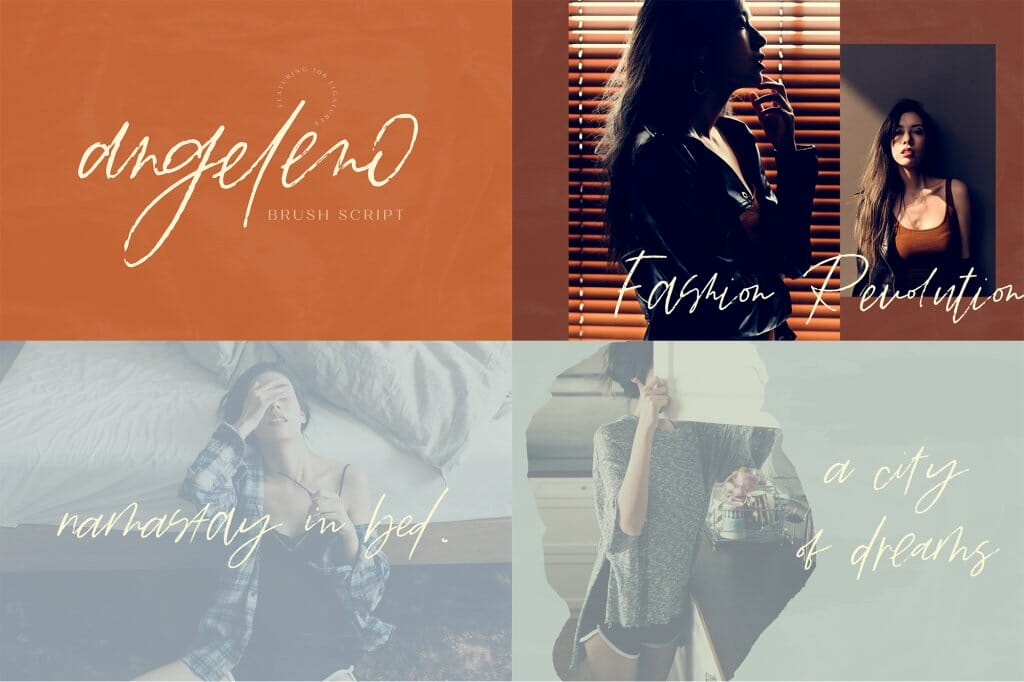
Angeleno Brush Script is my all-time favorite brush font that I’ve ever created. Brush scripts aren’t typically my strength, but I really do enjoy creating them and using them. Angeleno is a little gritty and has a specific edge to it – I lettered it with Los Angeles’ attitude in mind.

Designers, guess what?! I’ll let you in on a little secret. I didn’t use a paint brush or even a brush pen for this font. It was created entirely digitally! I made my own Procreate Brush that had the specific amount of texture I was hoping for. Digital lettering is my favorite, really – I love the ease of use for creating, easily undoing, and always skipping the scanning process. I suppose you could say this enables me to be a little more environmentally conscious – no paper waste! – but it’s really just because digital is so much more convenient for me and there is no clean up involved.

Anyway, this font has pretty impressive features, if I do say so myself! I really wanted to make sure that it held true to a handwritten look & style, so…in addition to 35 lowercase alternate characters, it has over 100 ligatures. The ligatures lend themselves to a more flowy, handwritten look because they mimic how a person would write a combination of letters. Feature rich font designs are something that I’m known for, so this font is no different!


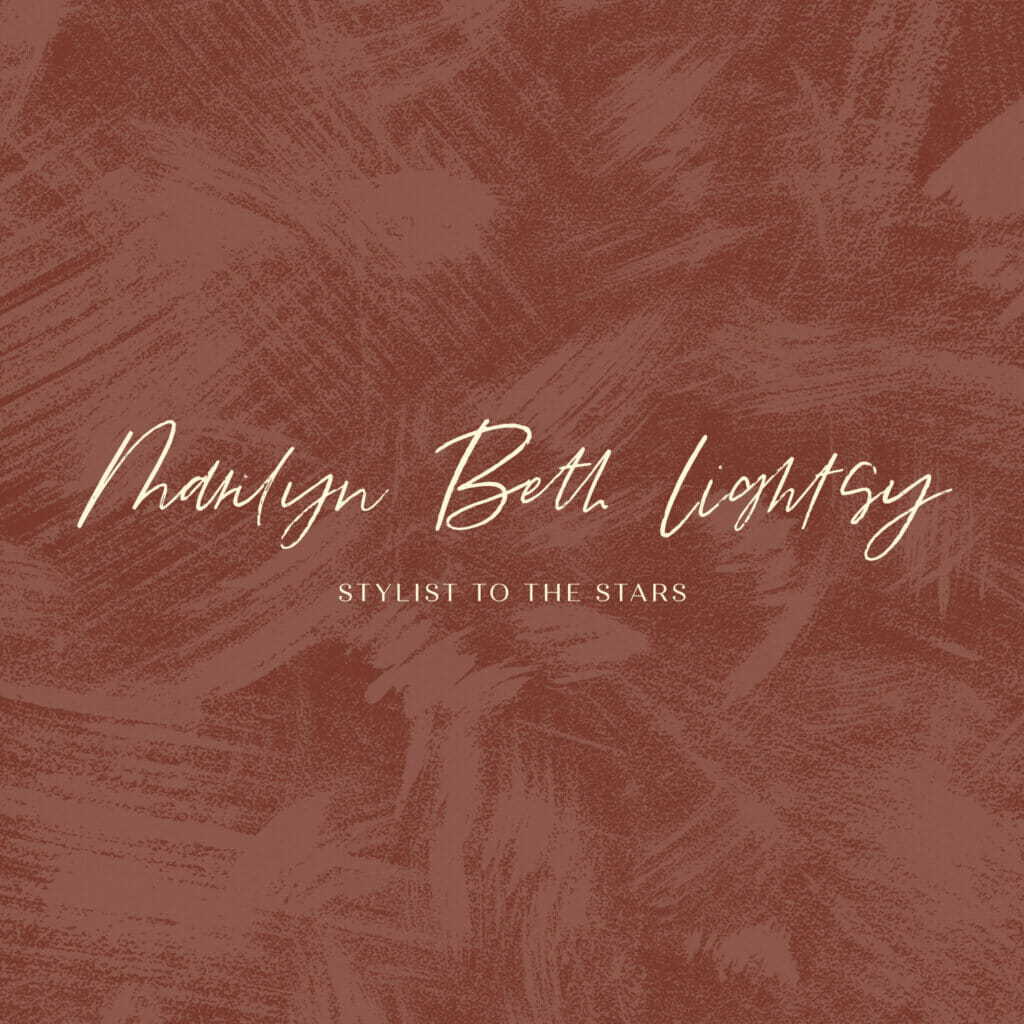
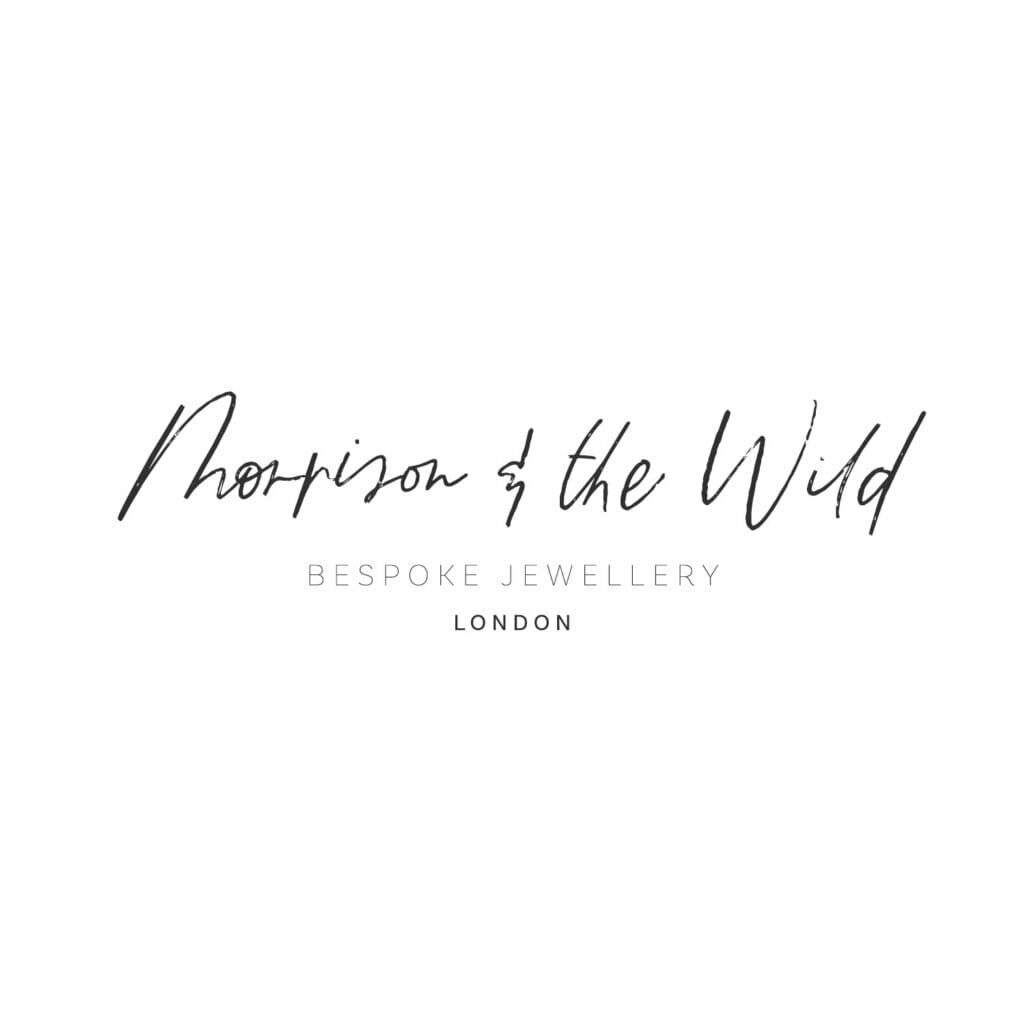
This script would be a perfect fit for a variety of projects, but my favorite is for logos. You can check out a few versions that I’ve put together below. I simply love that it looks like a scrawly signature, and it really does have a moody, in-a-rush kind of attitude! I also think that blogs & product packaging would be a good type of project for this font, and clearly this script looks fabulous on quote graphics, too, so social media-related usage would also be a fantastic fit.

You can grab this script font for $14, and it includes a personal + commercial license. BUT, I have a better suggestion if you love this style.

I Offer A Collection of Brush Fonts!

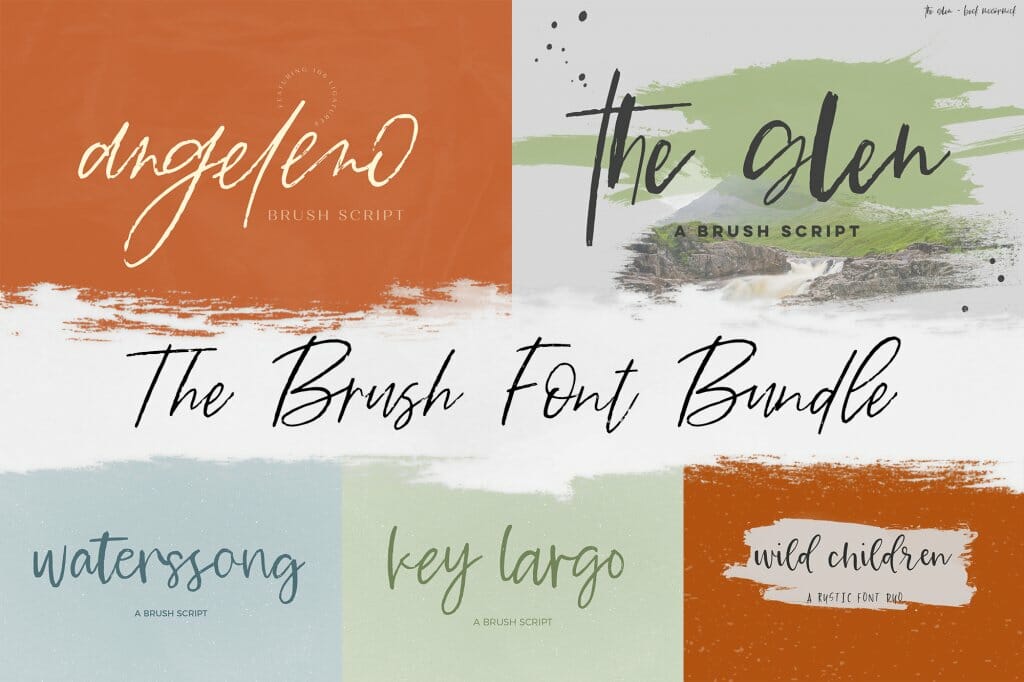
If you truly love using a brush script to design, I would recommend checking out the designs in my Brush Font Bundle! It includes five of my most popular brush scripts – Angeleno happens to be in there, as well as The Glen, Waterssong, Key Largo, and Wild Children. Wild Children is actually a font duo, which makes it even cooler! While each of these has a similar quality using textures to create visual interest, they all have totally different styles, which makes them super useful and versatile for a wide variety of projects. To top it all off, the Brush Font Bundle gives you pretty impressive savings, too! There are $58 dollars worth of goodies in this bundle – it’s only $18 to make them a part of your own collection, though!

One of my goals for 2021 is to put together a few new brush font additions for my site. I’ve thought about how merging the texture of a brush font with the bouncy nature of calligraphy might go, so I might have some additional styles to add in. Keep your eyes open for that – I have so much planned and so much to design!

Brush Fonts Make a Great Website Accent

Web designers, you’re always looking for something to make your page design stand out right away that’s easy to use, not what everyone else has, and will impress your clients, right? Use of a textured font like these is one surefire way to do just that, if your project lends itself to that. Sometimes, though, it’s a good idea to call in a little extra design help.

Free Brush Fonts

If you’re looking for a free brush font to play around with & see if it’s your preference for your next project, I have one for you! I give away five free fonts when you sign up to my mailing list, and lucky for you, I have a lovely textured mini font in there called Edgewood! (A mini font simply means that it’s lacking punctuation, accented characters, etc. It’s only letters!) This little brush font was my first venture into the world of creating brush texture on letters. Initially, I wasn’t sure how I felt about it, but I’ve grown to quite like this font. It seems that other folks do, too, so I’m sharing it with you!

You can sign up through the link below to get your freebies!

Join my mailing list!

Brush Fonts Read More ยป

Scroll to Top

Hi, I'm Beck!

Receive exclusive offers & freebies when you sign up for my mailing list!