6

Crafting

Winter Fonts – My Inspiration

For me, the holidays are always the best spent with family.

A couple years ago, we celebrated the fall and winter season by heading out to Austria and Germany around Thanksgiving! I love to travel, so it was amazing to get this opportunity to do so, all while experiencing how another country begins to celebrate the Christmas season.

It was hard at first, since we were all tired AND they speak a completely different language than we do. Speaking English in Germany made me feel a little silly, but the locals were quite forgiving. Knowing the very basics was helpful – thank you, and I’m sorry/excuse me.

Strolling around the Christmas markets was definitely the highlight of everyone’s experience in Germany, though. It was nothing short of pure magic for me, and that’s definitely not just the Gluhwein talking. Tooling through the booths really sparked my inspiration!

Everywhere, you could see different things at each booth, like cookies at one, and a collection of paintings done right in front of you. You could find just about anything there. Also, their food and sweets selection was immaculate. Each candy booth had hundreds of types of candy, and some sweets booths even had chocolate covered strawberries, made fresh. I got to experience raclette for the first time, too!

Thankfully, we went at just the right time of year where there was a bit of chill in the air, but no real ice or snow to speak of. To be fair, I wouldn’t have minded a little snow, but the ice…no thank you.

Anyway, inspiration was everywhere I looked. I love the holiday season, so I’ve put together this collection of winter fonts for you, which will be the perfect addition to winter themed designs and projects.

Not Your Average Font File

This bundle is amazing for the winter season, and it has so many script fonts to choose from. Winter fonts might just seem like a ruse, like… how can a font imitate or work well in the winter? That’s the thing: winter fonts bring the feeling of winter (cozy blankets, hot chocolate, opening presents) right into whatever projects or designs you’re making.

The font files are easy to use and download, so it’s very user friendly as well! The complete font list for the bundle can be seen on my site, but here, I’m going to talk about some of my favorite fonts, favorite font style, ideas, (which I have thousands of!) The image below provides some insight into what my Winter Bundle looks like. These images show that each font included in this bundle has its own personality! The fonts included in the bundle are mainly script fonts, but there are also fonts that mimic handwriting, and are perfect for any designs or projects you may have this Christmas season.

With the theme of the bundle obviously being winter, it’s no surprise that the branding and names of the fonts follow suit. It doesn’t matter what projects you’re making, or how you’re using the font files you’ve downloaded, it’s based on the quality of the font, and these fonts are top tier if I do say so myself. If you take a look at my fonts list, there’s sure to be something there for all designers that are into lettering, handwriting, Christmas, or anything, really!

What Exactly Can I Do With The Font Files?

Once you’ve download your font files, you can do so many things with them! I always see page upon page upon page of awesome Cricut cutting machine projects on the web, so it’s really up to doing what you want to do with the font files.

Google is a great way to help you find just the right ideas that work for your letters and font files, as well.

Using your Cricut machine, you can cut a sticker, vinyl, or infusible ink, just be sure to visit a few websites beforehand to be sure you’ve got the right setup. I’m notoriously a crappy crafter, so I review instructions each & every time so that I’m not being wasteful with materials.

Using the Cricut official site, they can help guide you on the right path, and even give directions for basic projects. Using the font files for personal use, like Christmas gifts or even a decorative plate for cookies is always a really good way to show off your Cricut skills, and how well you can cut using the machine. Your project will turn out nothing but stellar, I assure you!

I think these Christmas-themed fonts & projects are a great way to get into the Christmas spirit. Also, Gluhwein is a great way to do that, too.

Visit My Website To Get This Awesome Deal

The winter font bundle is an investment in your design arsenal! The bundle includes a collection of script fonts, fonts that mimic handwriting, and many more, so it’s guaranteed that your perfect font file is in there waiting for you!

The Christmas spirit is brought to life by my bundle, and is sure to be perfect for you designers and you crafters alike. Lettering is a great hobby of mine and also what I get paid to do (I LOVE THAT), and I love being able to share it with other designers like you.

Just as a reminder, I include a personal use and commercial use license with your purchase, so you’re welcome to use this font collection for your own projects, as well as for your business!

Sign Up For Free Fonts

If you want to give my fonts a bit of a quality test drive, you can always sign up for my mailing list on my website! I send out some freebie fonts after you sign up, I’m sure you’re going to love them!

Winter Fonts – My Inspiration Read More ยป

Use a Cursive Font for Cricut Designs

Script fonts always look amazing on a screen, and even better in print or in designs. I’m a font designer, so I realize that I might be a little picky and critical about font choice for any given design project. That said…the default fonts in Cricut Design Space aren’t really all that cool. (No shade at the original designers, because I know how much work goes into creating the fonts! All I’m saying is … there are WAY more choices than the defaults!)

Using a script font while crafting may also prove to be challenging at first because there are so many choices to choose from, but this post is filled with tons of information to get you started! Working with mugs, canvas, stationery, and many more craft projects will be as easy as pie!

Script Fonts in Cricut Design Space

When getting used to using script fonts in Cricut Design Space, it’s impossible to choose just one font that has all of the script letters exactly the way you want them. Cricut Design Space does this really weird thing where the letter spacing is always, always off. Meaning, it treats the font completely differently than the designer intended it to, and for those fancy script fonts where it’s supposed to look like continuous cursive writing…it just looks like spaced out cursive letters. Womp womp. It’s terrible, and I don’t know why Design Space does this, but it’s fixable!

(I have a blog post about this, but here’s the run down: use the letter spacing tool and bring it as close together as possible. Sometimes, it’s actually negative, and not just 0. This will give you a pretty good indication of whether or not it’s a font that you want to use. If you do, choose the “ungroup to letters” option up at the top of the layers panel. This releases each letter to its own layer, and you can piece them together yourself. Make sure to weld the letters to each other before cutting them!)

Anyway, my Handlettered Font Bundle has over 200 hand-lettered fonts to chose from. With this many amazing fonts in one package, it’s hard to go wrong! You may be thinking, “200+ fonts? That’s too many! How will I ever find the one that fits well with the project I’ve envisioned?” Don’t worry! The bundle is easy to navigate, and all fonts included are shown in photos, along with its very own branding. (I’m convinced each font has its own personality.) This way, it is easier for people to scroll through the fonts included, and see how they look visually before crafting with them!

What projects would use script fonts?

Using script fonts for projects always gives the craft the extra edge; it puts it over the top, and it always looks way more polished. I’ve done many Cricut machine projects, but there are some that are super popular within the Cricut and crafting communities. Within Design Space, you can create some amazing works of art, like customized mugs, t-shirts, and farmhouse signs. If you have access to professional design programs like Adobe Illustrator, you can also use the fonts for logos, branding, product packaging, and other branded materials.

The font collection is very versatile, and contains a wide variety of cursive fonts, all handlettered to perfection! The font types range from calligraphy fonts to fonts that mimic handwriting – you know, a little messy and scribbly. In the bundle, you will also find whimsical sans fonts, farmhouse fonts, rustic fonts, signature fonts, and handwritten serif fonts. Crafts are sure to be amazing when you have the perfect font for every occasion! Not to mention, the fonts are also very user-friendly to download and upload to your projects, so it makes it easier to use for all of your crafts!

What’s Included in my Font Bundle

Like I mentioned before, the range of fonts included in this bundle is incredible. Each font includes the installable .otf file for your convenience. Personal and commercial use is permitted, so you can use these fonts for your own personal projects, or you can use them to create an item for sale.

Do You Craft With the Cricut? I Try to, Haha!

Using the Cricut has… been a challenge for me. I would constantly find myself trying to find a cheat sheet, or anything that could help me be less Cricut-inept as I was when I first began using it. I’m still a pretty crappy crafter, but I have learned some cool tricks.

Letters and how they came out on my projects was definitely one of the hardest parts. I couldn’t seem to understand why some fonts worked better than others for cutting purposes. It felt like I was confined to using a bolded sans font forever, which didn’t sound appealing for a cute project. And for a font designer? Sort of heart-wrenching. I just wanted to use a dang script font! I wanted my projects to have flair! I wanted the projects to have something to make them stand out from the rest. I knew I wanted more from the Cricut, I just didn’t know where to start — it was easier for me to letter & program a font than learn how to use the Cricut, which sounds crazy, I know!!

The intricate script fonts weren’t weeding well at small sizes, and that was why they looked like complete crap. Using the default Cricut fonts just didn’t sit right with me because I’m a font snob. (Hey, at least I’m honest.) There was definitely a learning curve as far as what worked and what didn’t. I swear, I read article after blog post, and things just didn’t click right away!

When I realized I was able to upload my own fonts to the Cricut, I was so excited to see my fonts in action, I started making crafts right away. I began making mugs, which seemed like the best project, since I drink a TON of coffee. I would type what I wanted the mug to say, then I would place the text within the parameters of the design space that was given.

I clicked the start button, and sat back waiting for something to go terribly wrong. But, no weird noises, no explosions, no fire starting … I mean, I really mean it when I say I’m not a very good crafter, y’all.

I watched intently as the Cricut made its precise cuts on the vinyl. Looking back at my computer, I could see that the progress bar was almost full, so I was preparing myself for the worst even though it looked like it was going well. I was sure the design would come out wrong.

It wound up going ok – and so began massive amounts of experimentation using cursive fonts with my Cricut!

Cricut Fonts

Adding fonts to the Cricut Design Space may seem super tedious just reading about it, but I’m here to give a summary of it. I’ll lay down the basics, and the need-to-know information to help you on your Cricut journey.

Custom Fonts In Cricut?

Yes! You can use custom fonts in Cricut Design Space! Here, I’ll give you the steps on how to get them in the Design Space.

  1. You need to install the font on your computer first.
  2. Look in the System Fonts section of Design Space for your newly installed fonts. (System Fonts are easy to find, and navigate.)
  3. Design to your heart’s content using your cool new non-Cricut default fonts!
A Little More Info: Basic Terminology, and What You Need to Know

Cricut is the machine you’re using. Design Space is the software that is used along with it. You can use custom fonts in Design Space. In fact, you can use any fonts you’ve installed in Design Space! You definitely want to make sure your fonts work with Design Space, first. Since I provide .otf and .ttf files, you’re golden!

You can’t upload fonts directly to Cricut Design Space, though. Donโ€™t worry, your project youโ€™ve gotten ready to create is still safe. The biggest mistake that most Design Space users make as it relates to custom fonts is trying to directly upload the font file to Design Space.

This ends up coming back to me with upset and/or worried customers telling me that my fonts “Don’t work on Cricut,” or that it’s the “Wrong file type.”

The fontsย doย work, they are theย correctย file type โ€“ you just need a quick tutorial on what you need to do!

Spoiler alert: Itโ€™s really simple.

You need to install the font onto your computer FIRST, this step is crucial in working with Design Space. Follow these instructions!

How to Get Your Fonts to Cricut Design Space

Mac Instructions – Here’s a step by step tutorial on how to get your fonts into Cricut Design Space.

Step 1 : Download the font!

You need to access your downloads the way you would any run-of-the-mill download. You’ll need to save the files to your computer. The easiest way? Drag to your desktop. You need to extract the file, and confirm any text box that pops up.

Step 2 : Extract (That means Unzip!) The Font Files

Once the folder is unzipped, it will show all of the previous content I had mentioned. It has many options that are there to make things easier for you, but you only need to install one file. Personally, I would suggest you use the .otf file for installing. Right click or double-click the file to open the menu. Then, select Font Book when it appears from the Open With tab.

Step 3 : Install the Font File

When Font Book pops up with a window for installation, you need to click install. Instead, you can copy and paste the file directly into your computer’s font folder. Command+Shift+C will bring up your computer. Double click your hard drive’s name, then double click the Library folder. Within the Library folder, you’ll see the font folder. Paste the font, and with .otf, it’s already installed.

PC Instructions/Windows Users – Here’s a tutorial on how to get your fonts into the Cricut Design Space.

Step 1 : Download the font!

You need to access your downloads the way you would any other download. You’ll need to save the files to your computer. The easiest way? Drag to your desktop. You need to extract the file, and confirm any text box that pops up. Overall, the process is pretty much the same as it is on a Mac.

Step 2 : Unzip the Font Files

Once the folder is unzipped, it will show all of the previous content I had mentioned. It has many options that are there to make things easier for you, but you only need to install one file. Personally, I would suggest you use the .otf file for installing. Right click or double-click the file to open the drop down options. Then, select Font Book when it appears from the Open With tab.

Step 3 : Install the Font Files

Right click the font file, and select “Install” on the menu. You may also copy/paste into your computer’s font folder. (this is accessed by Start > Control Panel > Appearance and Themes > Fonts, paste them in there!)

Tips and Tricks
  • Restart your program if it doesn’t show up!
  • You HAVE to unzip the file before dragging and dropping it.
  • You can’t install the webfonts on your computer.
ย 
What are Cricut Fonts?

I keep saying Cricut fonts. What are Cricut fonts? When I say “Cricut fonts”, I mean the default fonts that the Cricut Design Space already has for free, or for a (normally) small fee. Design Space comes with a standard set of free-for-you fonts, and you can purchase other fonts one by one. If you have the Cricut Access subscription, you get access to over 500 fonts within Cricut Design Space.

The difference between custom fonts (like the ones in my bundle) on Cricut Design Space and Cricut fonts is simple: You get to keep the file! The Cricut Access subscription is great and all, but you don’t actually get to have the fonts installed on your computer. Cricut Access is great for beginners, since it has lots of valuable choices. For more long term hobbies and projects, definitely stick with custom cricut script fonts.

So get out there! Find some custom, hand-lettered fonts you LOVE, and start crafting! Don’t be afraid to post your creations to share them with others!

Use a Cursive Font for Cricut Designs Read More ยป

How to Add Fonts to Cricut

Here’s the TL;DR summary!
  • Yes, you can use custom fonts in Cricut Design Space!
  • You need to install the font on your computer first.
  • Look in the System Fonts section of Design Space for your newly installed fonts.
  • Design to your heart’s content!

It’s been a minute since I offered up a how-to post, so today we’re going to be addressing how to add fonts to Cricut Design Space.

Here’s the deal. Cricut is the machine, and Design Space is the software you’re using. You can absolutely, positively use custom fonts in Design Space! In fact, you can use any fonts installed on your computer in Design Space.

This is a question I get quite often, especially as it relates to my font bundles…and even more specifically, as it relates to my biggest Handlettered Font Bundle. I get it – for a lot of folks, it feels like a little bit of an investment into their crafting hobby or business! You definitely want to make sure that the fonts are going to work with your software first! Since I provide .otf and .ttf files, you’re golden.

Let me tell you how to do the thing!

You Can’t Upload Fonts to Cricut Design Space.

Don’t worry, though, your project you’ve gotten ready to create is still safe – let me tell you the biggest mistake that Design Space users make as it relates to custom fonts. And before you ask, no, trying to upload them using an iPhone isn’t the biggest mistake I see.

Many of them try to directly upload the fonts to Cricut Design Space.

That won’t work, my friends. This usually results in a frantic email to me, telling me that my fonts “don’t work” in Design Space, they keep getting an error message no matter how many times they try to upload it to Design Space, and it’s entirely the “wrong file type.”

The fonts do work, they are the correct file type – you just need a quick tutorial on what you need to do.

Spoiler alert: It’s really simple.

Just Install the Font File on Your Computer

You need to install the font on your machine first. This is the very first step that you need to take in order to add fonts to Cricut Design Space; I promise, it works!

Getting Your Fonts to Cricut Design Space

Let me give you a quick step-by-step on how to install fonts on your computer! (Just as a heads up, you can find this exact same information on my blog post about how to install fonts – this particular post is just a little more geared toward Design Space users!) These instructions will work with any font download that you find, whether it’s fonts you purchased from me, another designer, or even font downloads from a website that offers free fonts for anyone to download!

I provide OpenType and True Type files in my downloads, as well as webfonts. I would recommend working with the OpenType version – it’s the one that ends in .otf in the zip folder that contains your font download!

Mac Instructions – follow these simple steps!
1. First, download the font! ย 

Once downloaded, youโ€™ll need to access your browser downloads the same way you would any other download. ย Youโ€™ll want to save the files to your computer โ€” the easiest way would be to drag to your desktop. ย My font files (.otf, .ttf, and web font files) are zipped up together. ย Youโ€™ll need to extract the files first. ย This should be a simple double click on the zipped up file, and confirming any dialog boxes that pop up.

font installation on Mac computers
2. Extract (Unzip) The Font Files

Once the folder is unzipped, itโ€™ll reveal the contents I previously mentioned. ย I provide various formats for your convenience, but you will only need to install a single file. ย I would recommend the .otf file for installation. ย Double-click the file, or right click on the file so that the menu appears.ย  (Image on the left of the right click option!)ย  Select Font Book when it appears from the Open With menu.

Side note with a little info: FontBook is the program that comes standard on a Mac machine to assist with font installation and organization. It also functions to provide a glimpse of the glyphs that are included in the font.

3. Install the Font File

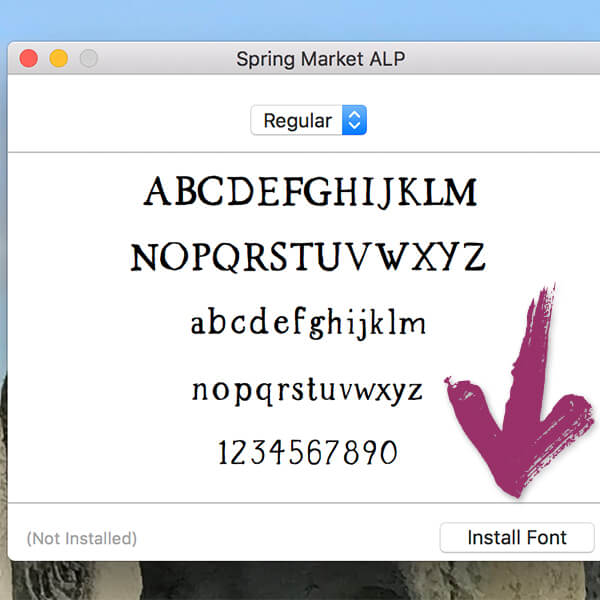
FontBook will pop up with a little window for installation. ย Click the โ€œInstallโ€ button. ย Similarly, you can copy/paste the font file directly into your computerโ€™s font folder. ย Command+Shift+C will bring up your computer. ย Double-click Macintosh HD (or whatever your hard drive is named), then double-click the Library folder. ย Within the Library folder, youโ€™ll find the Fonts folder. ย Paste the font files in this folder – pasting the .otf in this folder means that it’s automatically installed on your system.

font installation of Spring Market on Mac computers
PC Instructions – for Windows Users
1. First, download the font! ย 

Once downloaded, youโ€™ll need to access your browser downloads the same way you would any other download. ย Youโ€™ll want to save the files to your computer โ€” the easiest way would be to drag to your desktop. ย My fonts (.otf, .ttf, and web fonts) are zipped up together. ย Youโ€™ll need to extract the files first. ย This should be a simple double click on the zipped up file, and confirming any dialog boxes that pop up. Overall, the process is the same for any Windows machine.

2. Extract (Unzip) The Font Files

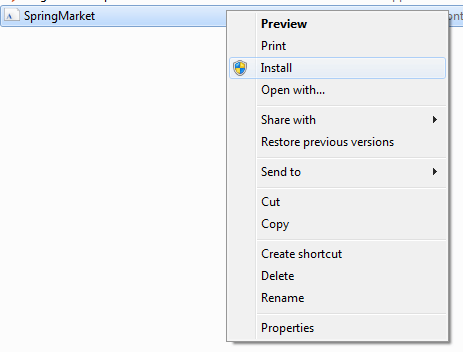
Once the folder is unzipped, itโ€™ll reveal the contents I previously mentioned. ย I provide various formats for your convenience, but you will only need to install a single file. ย I would recommend the .otf file for installation. ย Double-click the file, or right click on the file so that the menu appears.ย  (Image below of the right click option!)ย 

3. Install the Font File

For a Windows machine, you can right click the font file, and then select โ€œInstallโ€ from the menu that pops up.ย  You can also copy/paste them into your computerโ€™s font folder. ย That can be accessed by your Start Menu > Control Panel > Appearance and Themes > Fonts. ย Simply paste them in there!

I mentioned above that a FontBook on a Mac machine will allow you to view all characters contained within a font. On a Windows machine, you can use Character Map for this! I personally use a Mac for all of my design work, but I have used Windows machines before so I’ve been able to use both programs to tool through font selections!

font installation on Windows computers
font installation on Mac computers
A Few Tips & Tricks
  • If the font you just installed doesn’t show up in the program you’re using, restart your program!
  • You cannot drag & drop the .zip file into your system’s font folder — make sure you unzip it.
  • You cannot install the webfonts on your computer; in most cases you won’t ever touch these files.

Using System Fonts in Design Space

Wait, what does “System Fonts” even mean & how do you use it on a project?

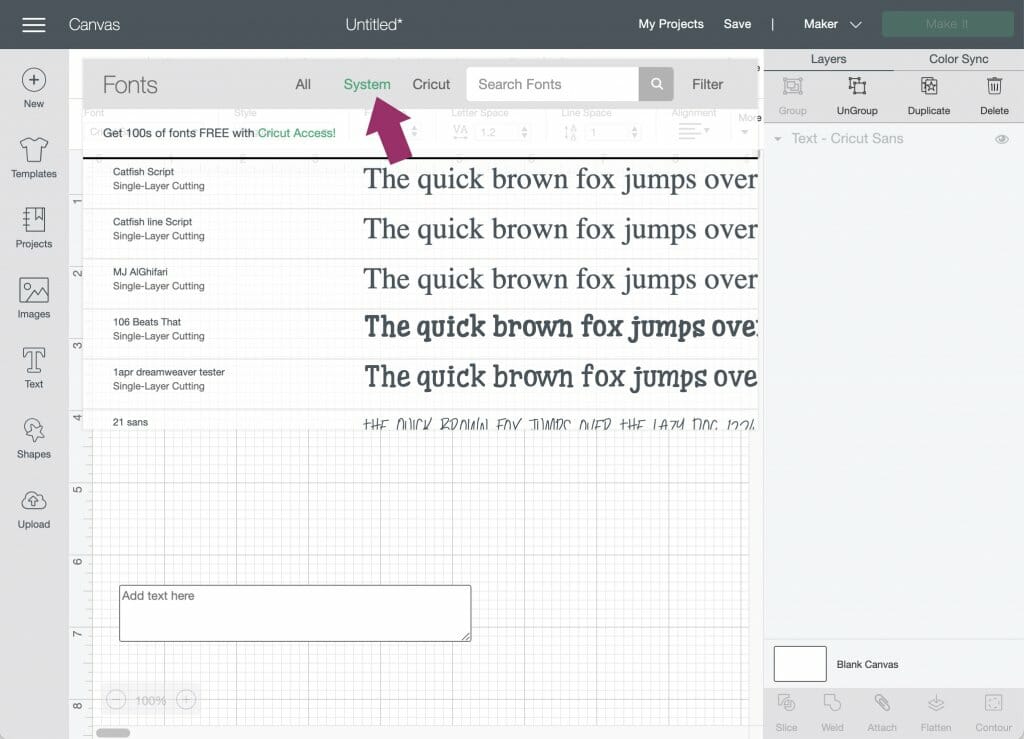
That, crafters, is what Design Space calls the fonts that are installed on your computer. The “system” part is your computer – Design Space accesses what you have installed, so you can use the fonts you downloaded in Design Space! You can filter the fonts you have access to in Design Space by selecting the dropdown menu with the text tool. When you select “System Fonts” it’ll bring up everything you have installed on your machine. Easy peasy, right?!

Give it a try!

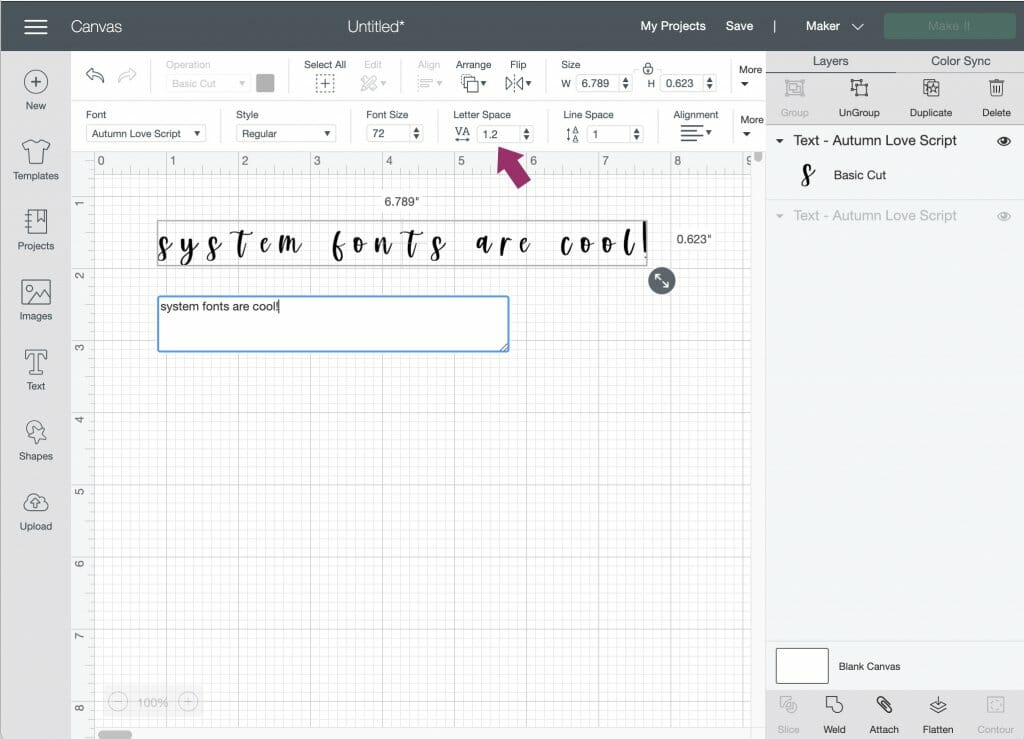
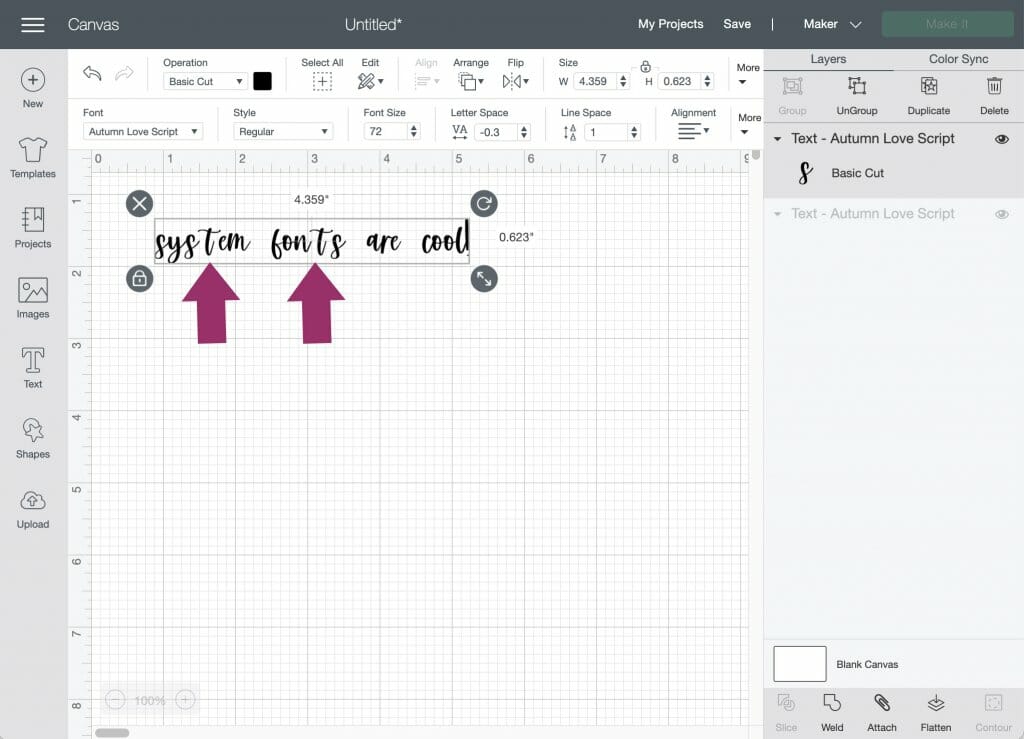
Select a system font of your choice from the font dropdown, and adjust your font size if needed. I picked Autumn Love for this example! I chose a script font for an important reason – this type of font style needs a few adjustments before sending to your Cricut machine for cutting, so I thought it might be a good thing to address.

using system fonts in Design Space

When you select the text tool, a text box automatically appears.

Now, type!

You’ll notice that script fonts have the letters separated. This isn’t “normal” for the font — definitely not the way font designers intend it to look — but this is normal for Design Space. You can adjust the letter spacing pretty easily by making the letter spacing number smaller.

using system fonts in Design Space

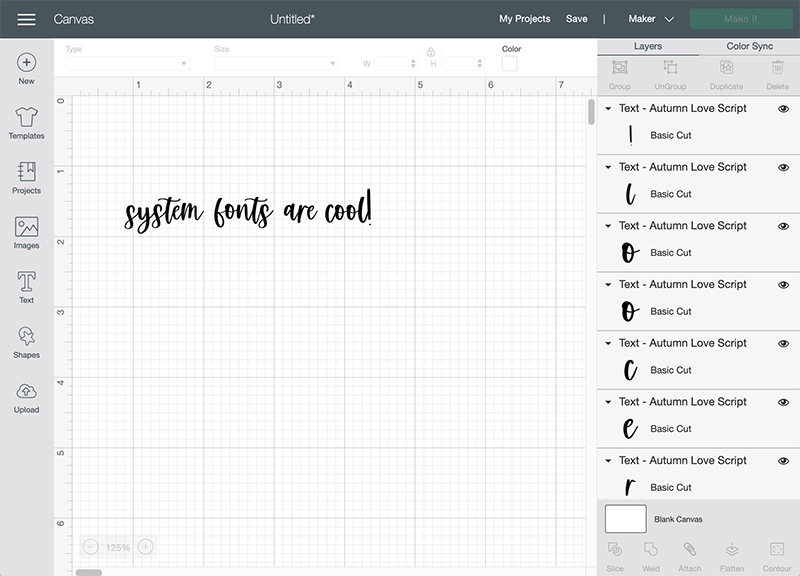
Even after doing this, you may notice some of the letters still aren’t connected – there’s also a simple solution to this. In your Layers panel, click the ungroup button. This puts each letter on its own layer so you can move the characters individually!

Please, for the love of everything fonts, adjust your letter spacing so that the font looks how the designer intended it to. This is probably my biggest pet peeve with Design Space.

using system fonts properly in design space
using system fonts properly in Design Space

You can make use of the search bar to filter your font choices if you know the name of the font you’d like to use, or you can just scroll and find it by the font name!

There are other options in the design panel, but we’ll address how to use those things in another blog post in the future. What’s important is that you’ve got this whole how to add fonts to Cricut thing down!

Make sure before you send to your Cricut machine that you weld the design so that the letters come all the way together as one piece! That is super important whenever you’re using a script font. That’s really all there is to it! Now you’ll be able to use custom fonts for your design projects!

What About Cricut Fonts?

You’ll notice that, in addition to system fonts, you also have the option to select Cricut Fonts as one of the filtering options. Whenever you do, you’ll be faced with a lengthy list of fonts that are available to you, either for free or for an additional (usually small) fee, directly from Cricut.

It’s a quite robust selection, and it does make it quite easy to add to your font collection via the Design Space interface. You can purchase these fonts onesie-twosie, but it’s also important to note that if you have the Cricut Access subscription, you’ll get access to over 500 fonts in Cricut Design Space!

So, what’s the difference between using Cricut Fonts versus finding your own custom fonts, downloading, & installing them? The fact that you get to keep the font files, that’s what! While the Cricut Access subscription is super handy and full of good stuff, you don’t actually get to have the fonts installed on your computer – they’re only available through Design Space. For most folks, that’s not a problem – I would assume that anyone purchasing fonts for their Cricut machine would likely only be using them for the machine…but if you’re a designer like I am, and you routinely make use of fonts in your daily work, it sure is handy to be able to use said fonts in whatever design program you’d like…whether that be using the font in Cricut Design Space, Illustrator, Photoshop…you get the point, right?

A Few Other Tips & Tricks

OpenType fonts (as opposed to True Type) are extremely robust with features and extra design components, and newer versions of software make it easy to find & use those features. Unfortunately, Design Space’s latest edition doesn’t quite fully support OpenType features as readily as font designers like me would want. (True Type fonts do include the features, as well, but they’re not as easily accessible with that particular file type.)

I often get asked, “How do you get those swooshy lines?” or “Where do I find the letters with the hearts?”

Those are the OpenType features. But don’t worry, you can still use them in Design Space; it just takes a few extra steps. One of my most referenced tutorials is for accessing OpenType features, so I would highly recommend heading there to read about how to get to all of the extra features. In a nutshell, though, you’ll need to locate the special character, then copy/paste the extra characters from Character Map (if you’re using a Windows machine) or FontBook (if you’re on a Mac). It may be a little tedious at first, but once you understand the process, it’s only a few extra steps to take your design from nice to WOW.

I will eventually be putting together a step by step blog post, but there are tutorials that already exist for this type of thing that you can search for!

Do you want a huge selection of fonts in Cricut Design Space?

Check out my Handlettered Font Bundle. Yes, you had to know I’d throw a shameless plug in there. But also, crafters purchase this bundle all the time – it’s got so many awesome fonts in there that are perfect for cutting because they have a super smooth edge. Using handlettered fonts like these give your project an extra special look & feel! I know the number of projects is endless, but I especially love seeing these fonts being used for t shirts and mug designs – I’ve also seen a few crafts where the fonts were used to make lovely greeting cards, which I thought was a great idea!

This particular bundle is awesome because it includes so many fonts – more than 200!! Don’t worry about licensing, either – it includes personal and commercial use, so you can sell the crafts you make using these fonts!

How to Add Fonts to Cricut Read More ยป

Scroll to Top

Hi, I'm Beck!

Receive exclusive offers & freebies when you sign up for my mailing list!